
Business scenarios
Answers to common questions such as "what if the ship is late?" or "what if the goods are inspected?". Each step shows a real M&C ERP screen, with frames and numbers marking where to look.
S01 — Delayed shipment
When a shipment is late, you cannot tell at once which customers are affected
In the demo, filter by DEMO-S01 to open the same data.
Step 1
- Action
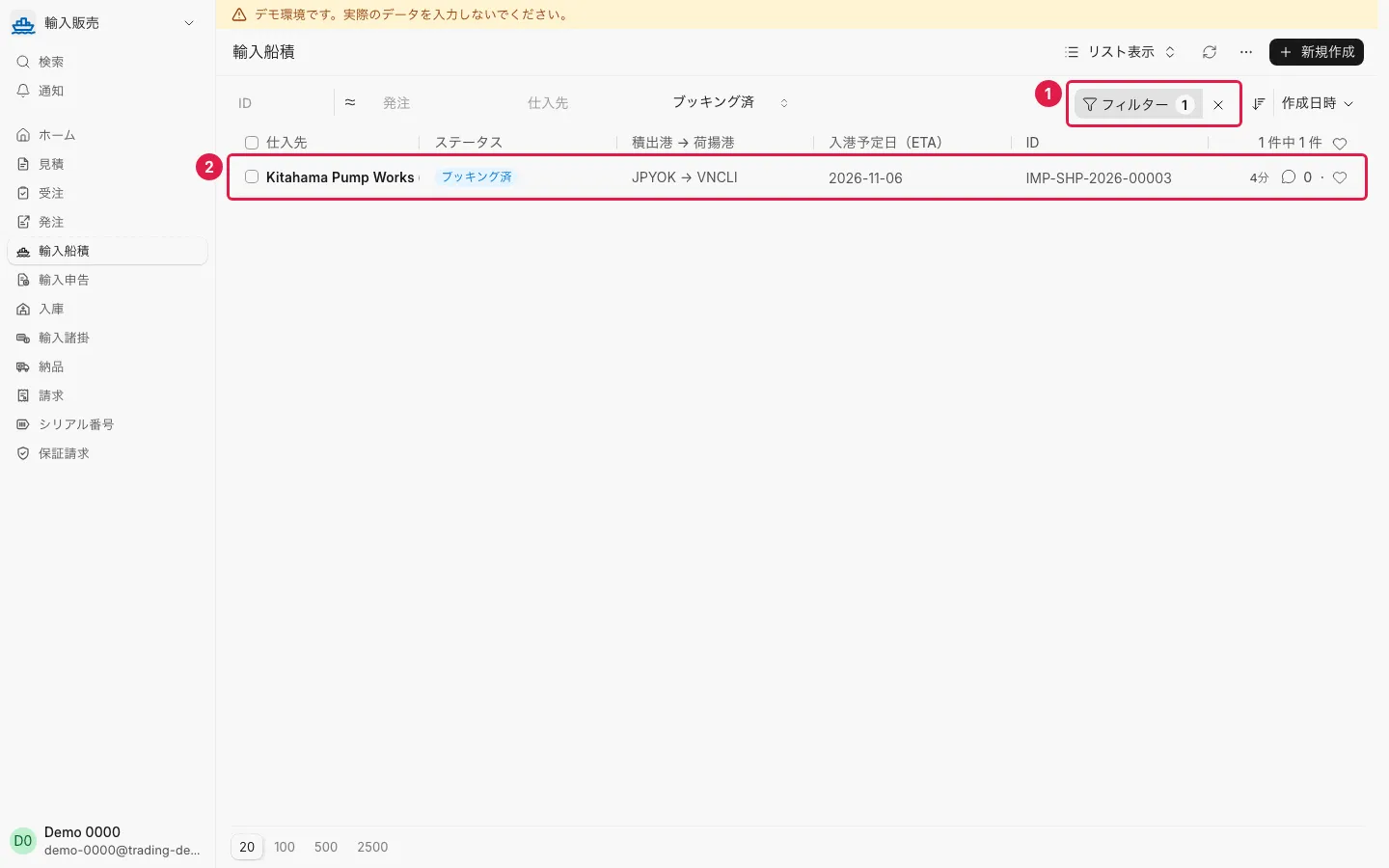
- Open 輸入船積 and filter ① by ステータス = ブッキング済 and 入港予定日(ETA) before today.
- Screen
- 輸入船積 一覧
- Result
- Shipment DEMO-S01 ② appears: past its ETA and not yet arrived.
Step 2
- Action
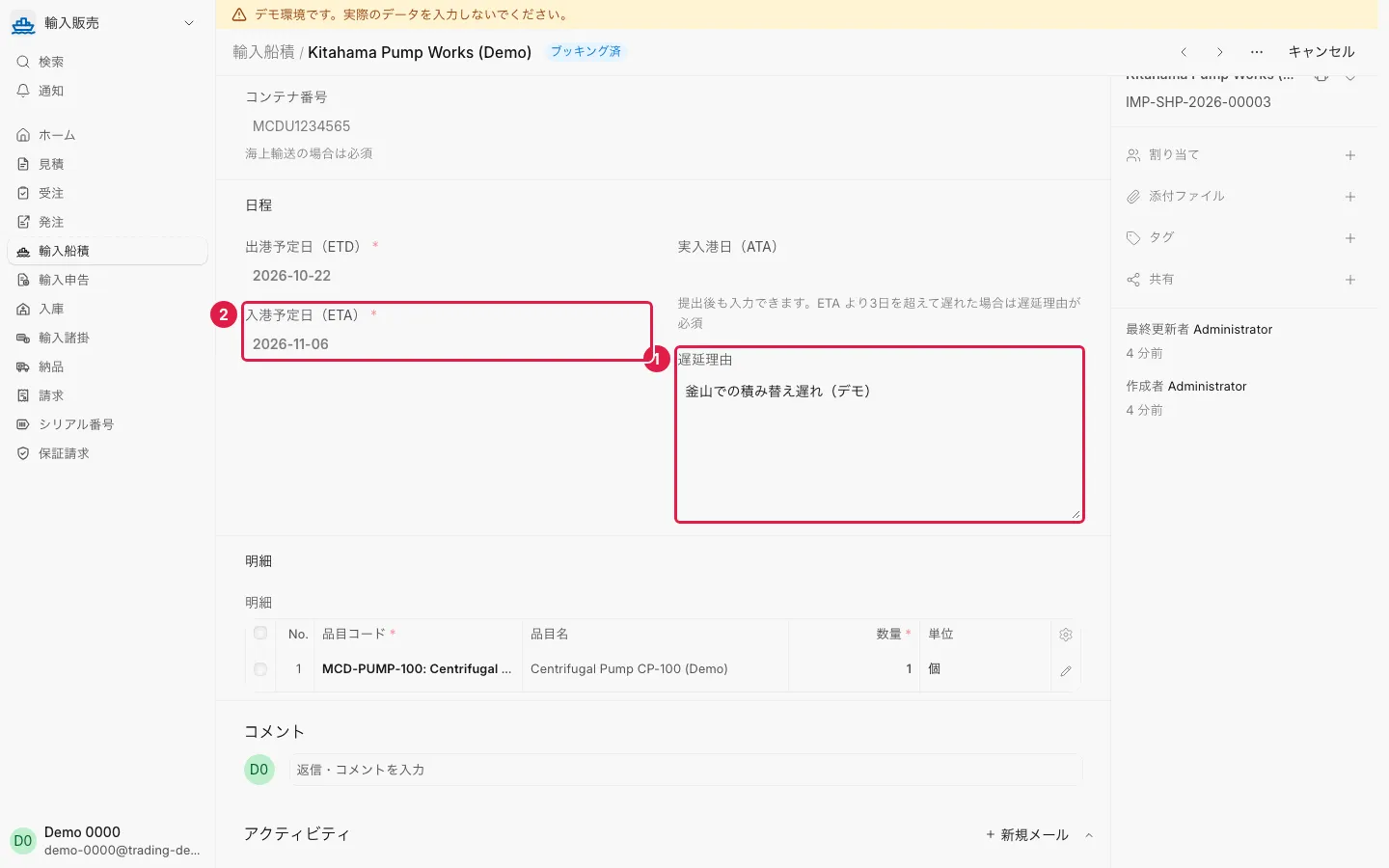
- Open DEMO-S01.
- Screen
- 輸入船積
- Result
- 遅延理由 ① reads 「釜山での積み替え遅れ(デモ)」 (editable after submission); the ETA ② has passed.
Step 3
- Action
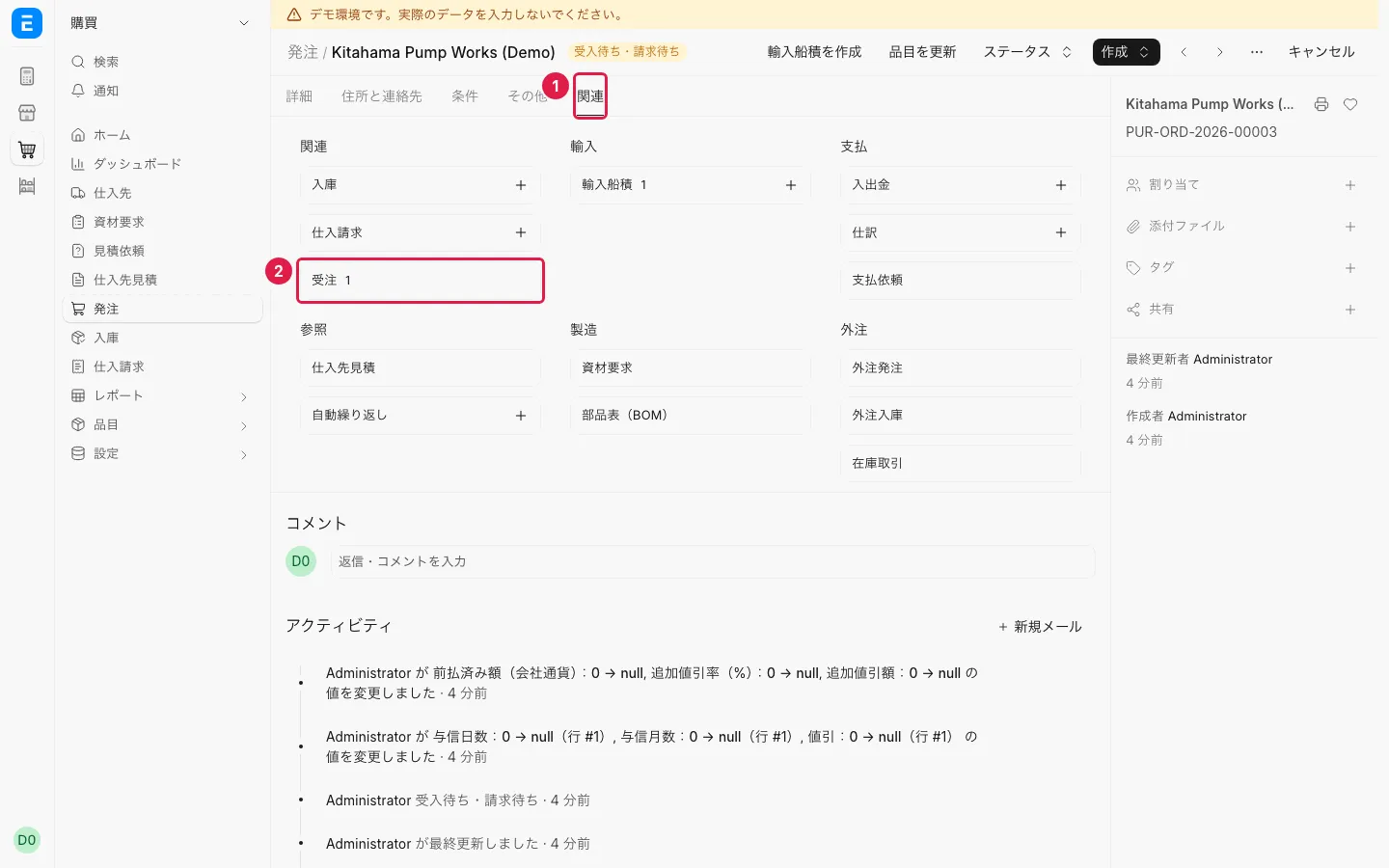
- From the 発注 field, open the purchase order (the shipment has no 関連 tab), then tab 関連 ① → 受注 ②.
- Screen
- 発注 → 受注
- Result
- The affected customer's sales order opens, so you can tell them in advance.
S02 — Yellow channel (document check)
Yellow or red customs channels make inspection cost and time hard to predict
In the demo, filter by DEMO-S02 to open the same data.
Step 1
- Action
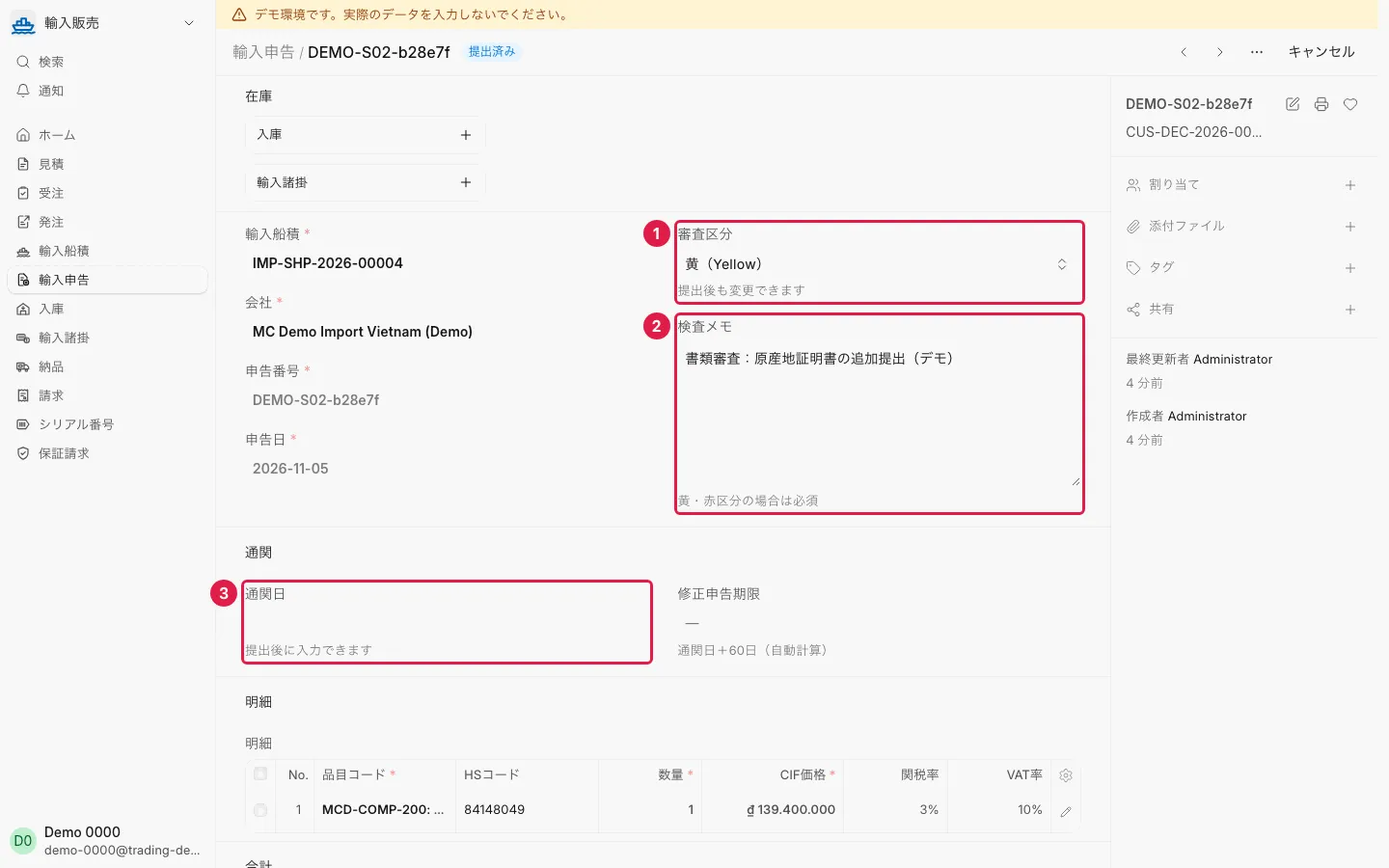
- Open the 輸入申告 of shipment DEMO-S02.
- Screen
- 輸入申告
- Result
- 審査区分 = 黄 ①, an inspection memo 検査メモ ②, and 通関日 still empty ③.
Step 2
- Action
- Open the shipment linked to the declaration.
- Screen
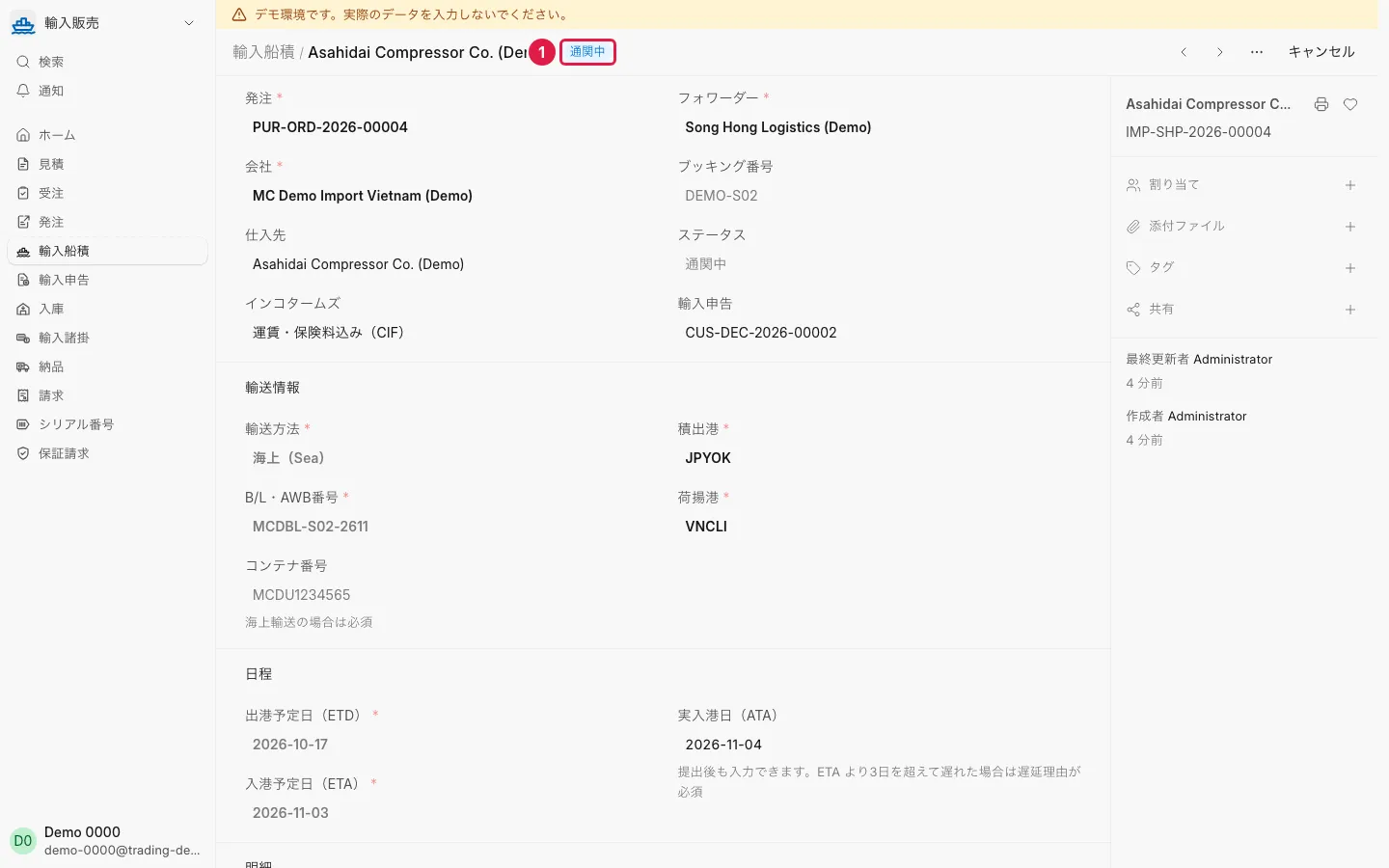
- 輸入船積
- Result
- Status 通関中 ①.
Step 3
- Action
- (Optional; changes the data) Enter today in 通関日 and press 更新.
- Screen
- 輸入申告
- Result
- The shipment becomes 通関済 and a 修正申告期限 is set.
S03 — Red channel (physical inspection)
Yellow or red customs channels make inspection cost and time hard to predict
In the demo, filter by DEMO-S03 to open the same data.
Step 1
- Action
- Open the declaration of shipment DEMO-S03.
- Screen
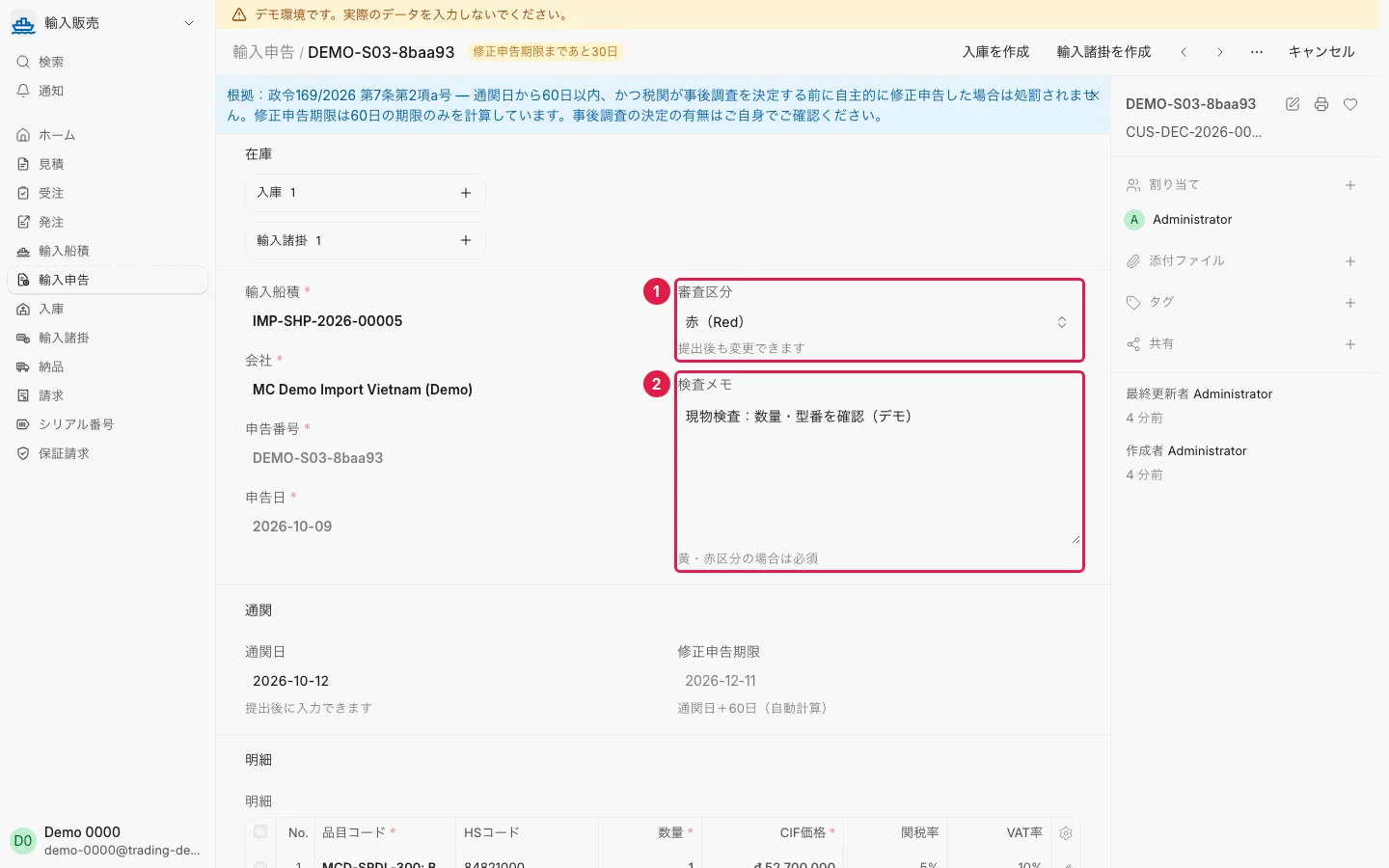
- 輸入申告
- Result
- 審査区分 = 赤 ① and 検査メモ ②.
Step 2
- Action
- Open 関連 → 輸入諸掛.
- Screen
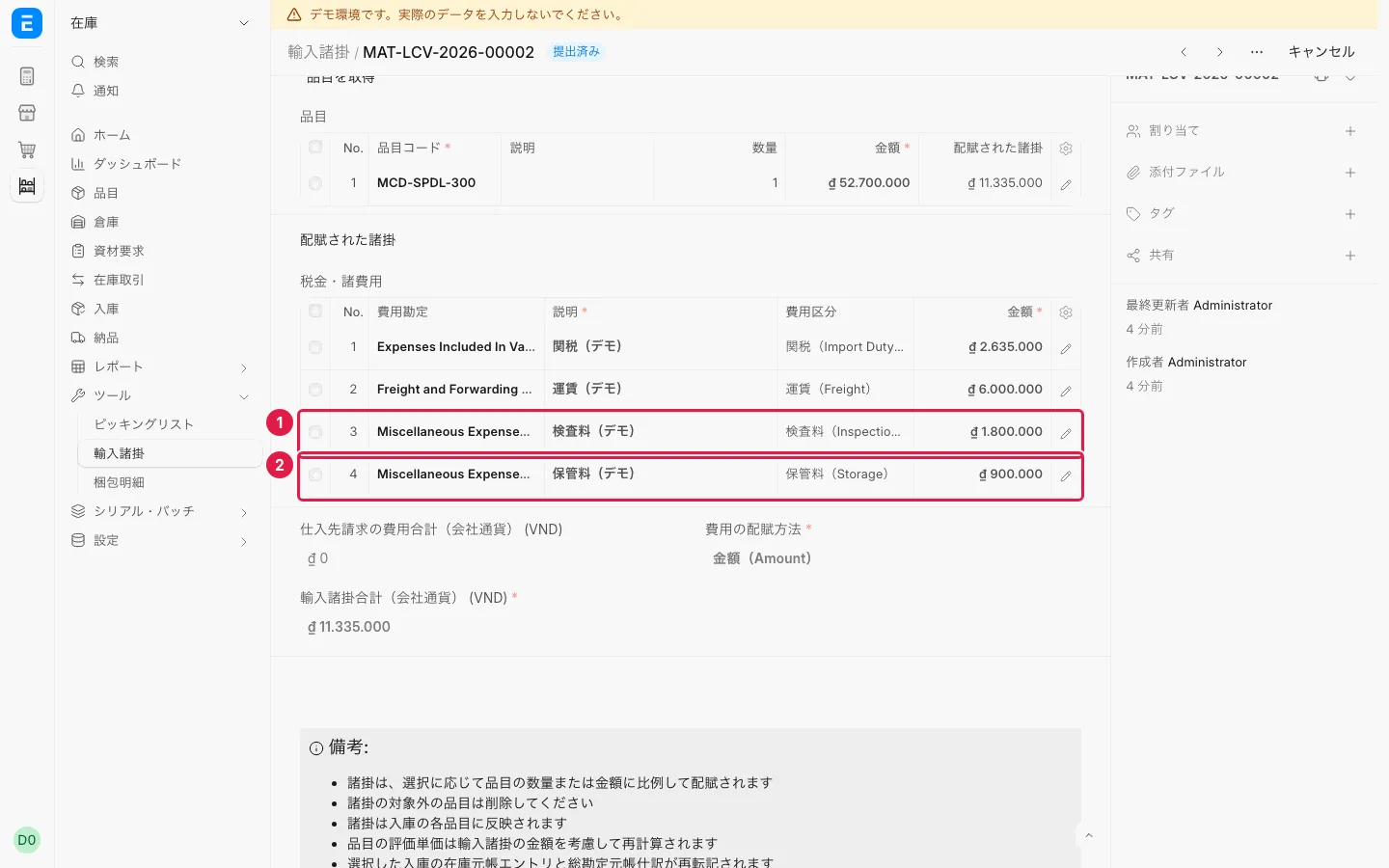
- 輸入諸掛
- Result
- Lines 検査料 ① and 保管料 ② sit beside 関税 and 運賃 and are allocated to cost.
S04 — Amendment deadline
Amendment deadlines are easy to miss
In the demo, filter by DEMO-S04A, DEMO-S04B to open the same data.
Step 1
- Action
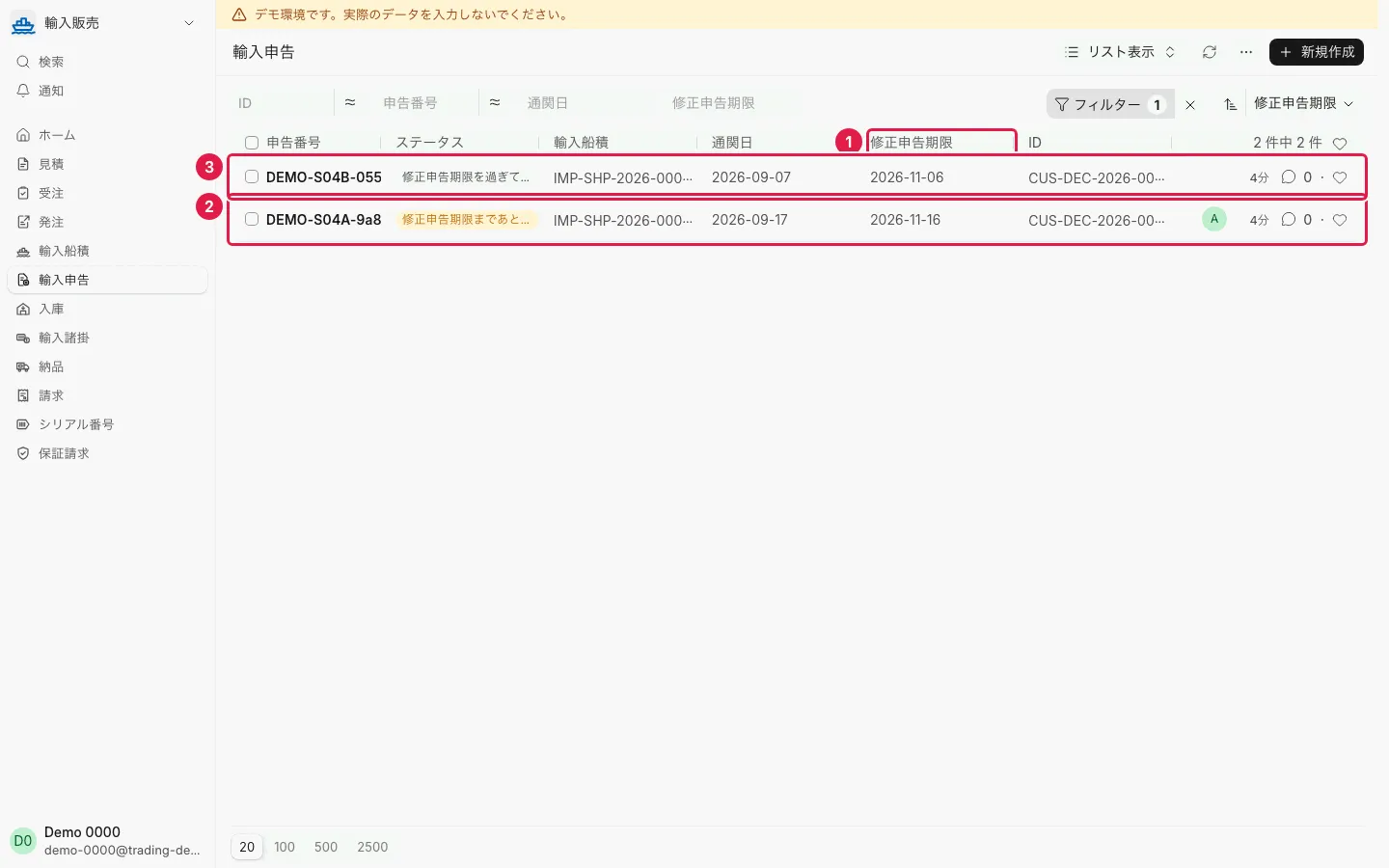
- Sort the 輸入申告 list by 修正申告期限 ①.
- Screen
- 輸入申告 一覧
- Result
- DEMO-S04A ② is still within its deadline; DEMO-S04B ③ is past it.
Step 2
- Action
- Check how deadline reminders work.
- Screen
- ToDo
- Result
- The system sends a ToDo to the declaration's creator 30, 15 and 7 days before the deadline. The sample declarations were created by an administrator, so demo accounts cannot open those ToDos.
Step 3
- Action
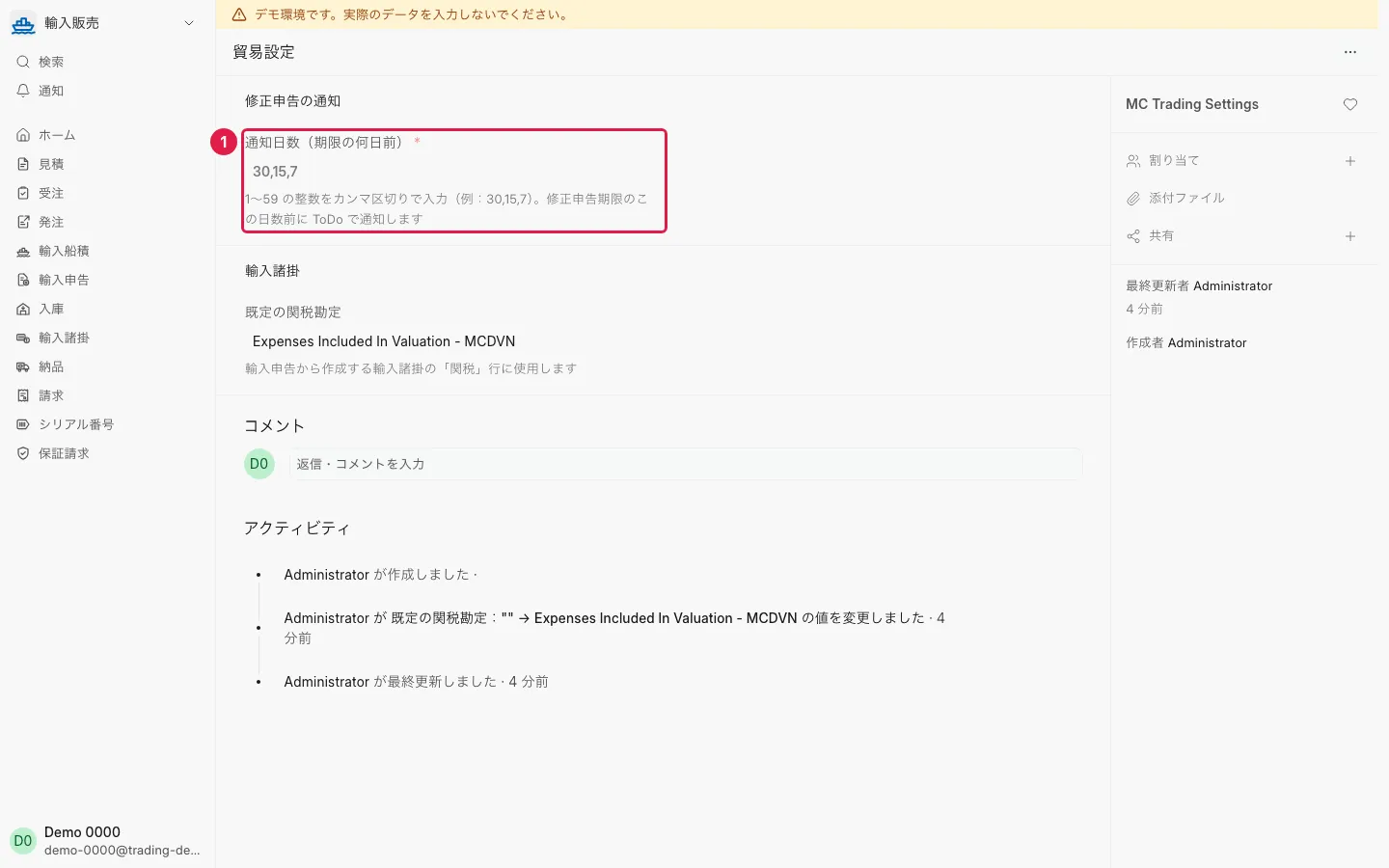
- Open 貿易設定.
- Screen
- 貿易設定
- Result
- 通知日数(期限の何日前) ① = 30,15,7, and can be changed.
S05 — Air freight (urgent parts)
Can urgent air shipments be handled on the same screens as sea freight?
In the demo, filter by DEMO-S05 to open the same data.
Step 1
- Action
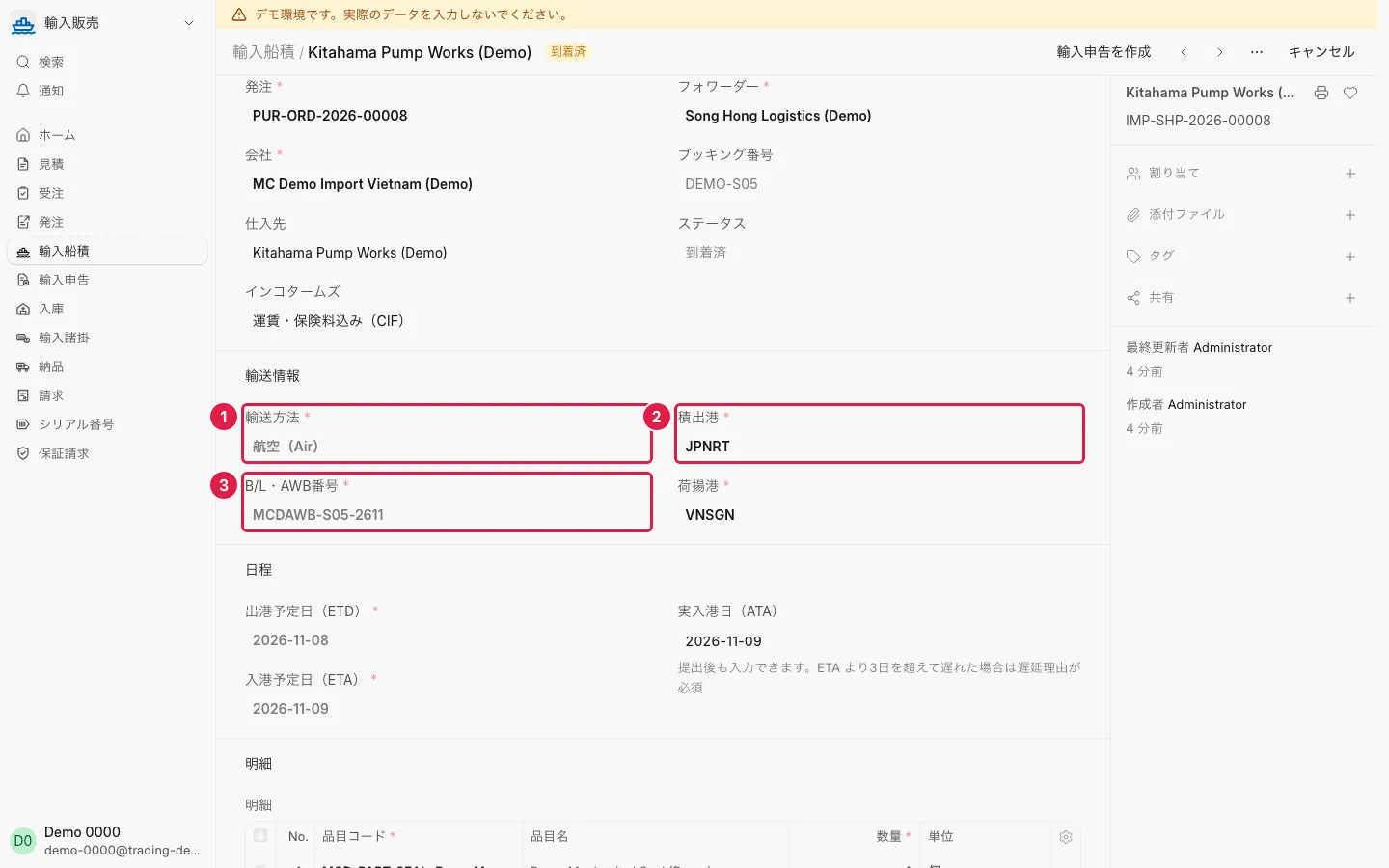
- Open shipment DEMO-S05.
- Screen
- 輸入船積
- Result
- 輸送方法 = 航空 ①, the port is an airport ②, with a B/L・AWB番号 ③; no container number is needed.
S06 — Partial receipt
With partial receipts and deliveries, it is hard to see what is done
In the demo, filter by DEMO-S06 to open the same data.
Step 1
- Action
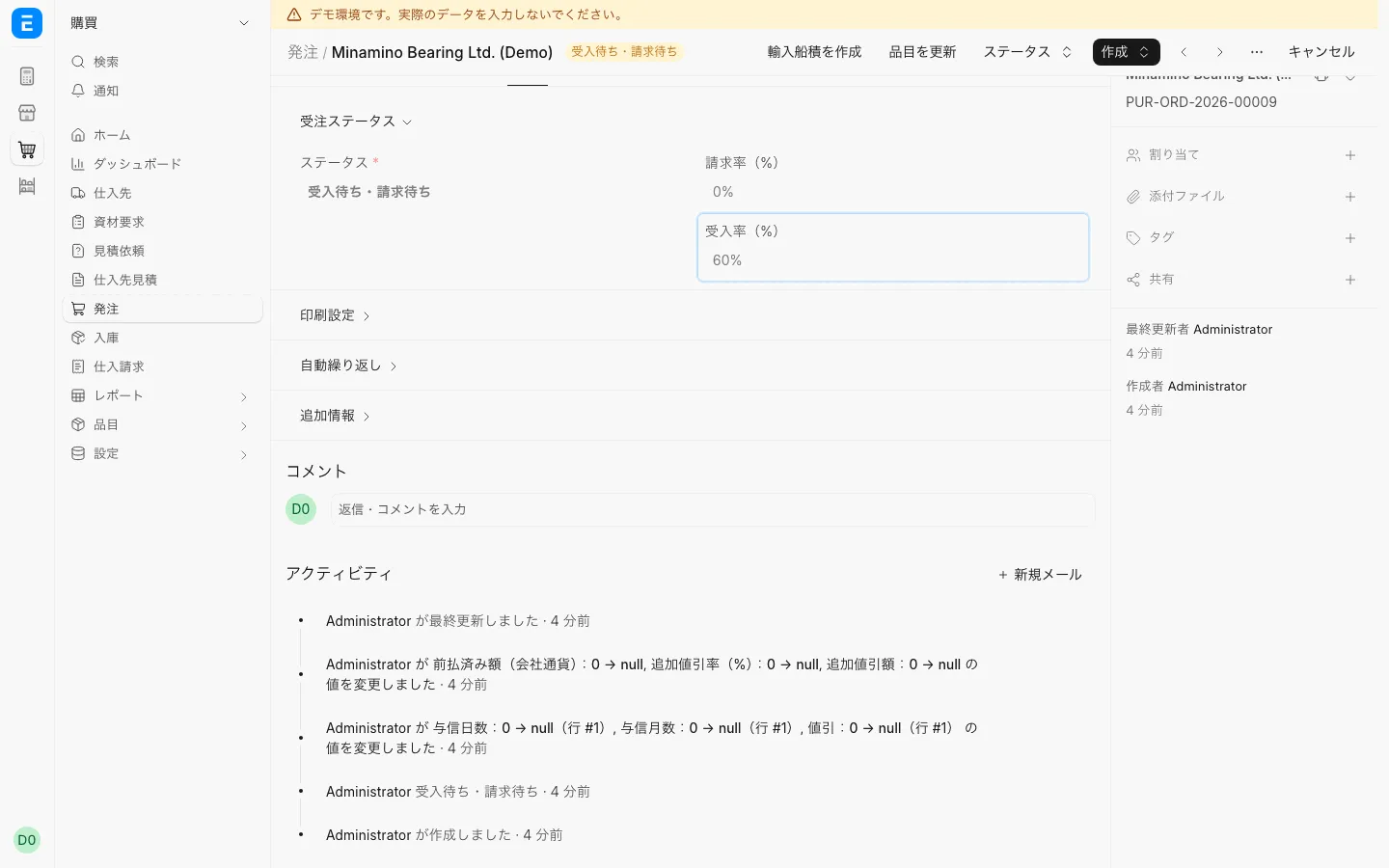
- Open the purchase order whose 受注確認番号 is DEMO-S06.
- Screen
- 発注
- Result
- 受入率(%) is 60.
Step 2
- Action
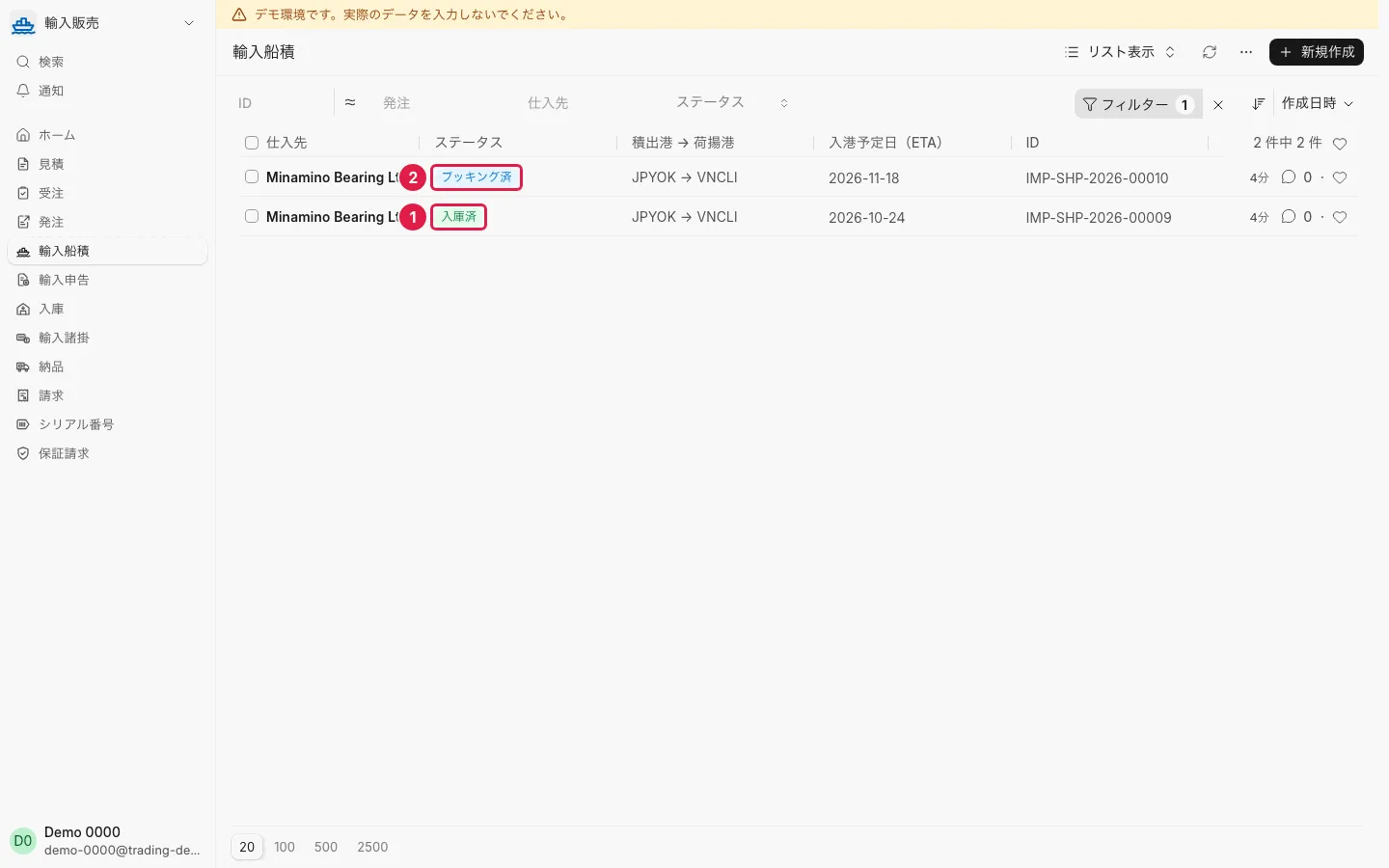
- Tab 関連 → 輸入船積.
- Screen
- 輸入船積
- Result
- Two shipments: 6 units 入庫済 ① and 4 units ブッキング済 ②.
S07 — Partial delivery by serial number
With partial receipts and deliveries, it is hard to see what is done
In the demo, filter by DEMO-S07 to open the same data.
Step 1
- Action
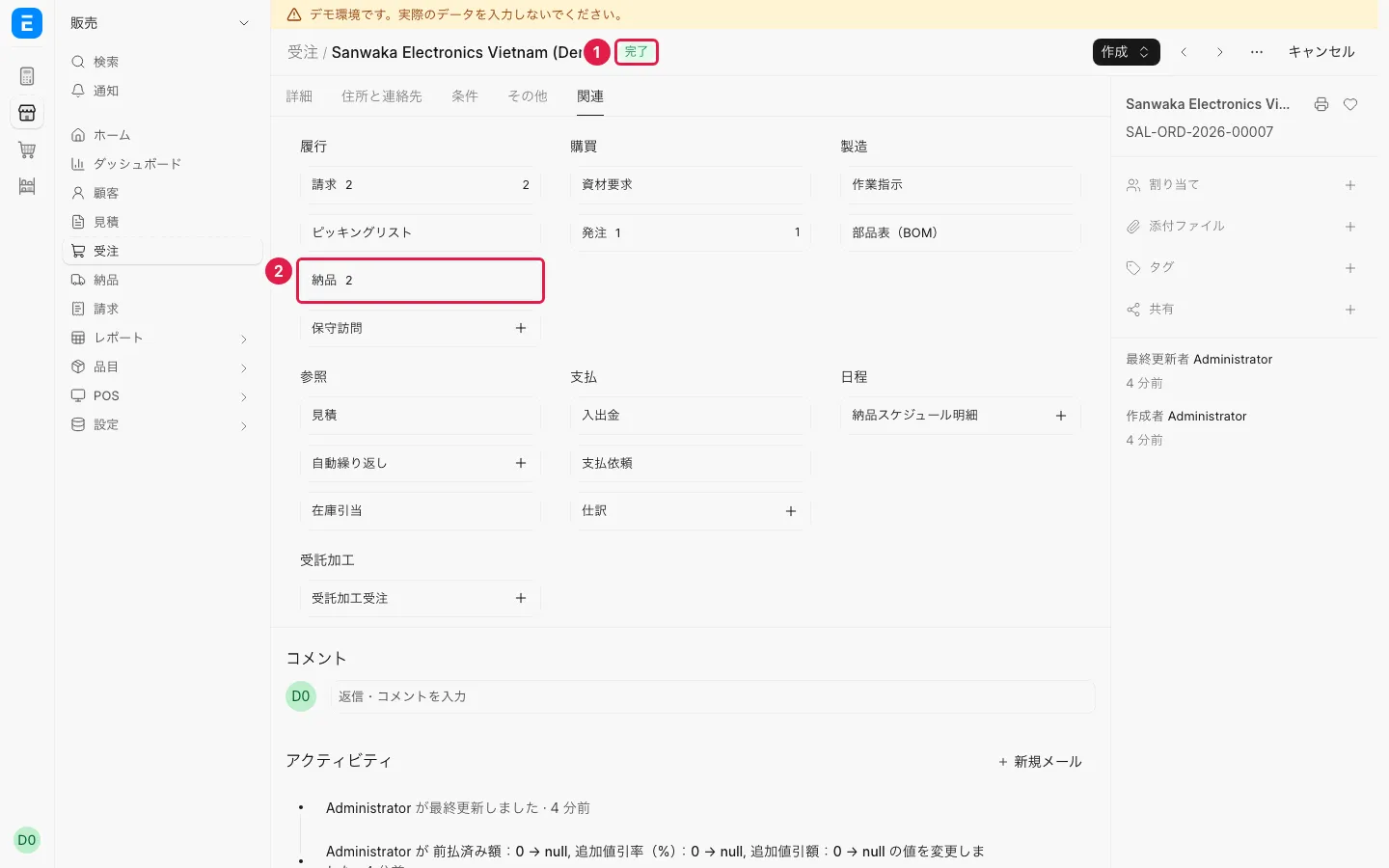
- Open sales order DEMO-S07, tab 関連.
- Screen
- 受注
- Result
- The status at the top is 完了 ① (fully delivered); 納品 shows 2 deliveries ②.
Step 2
- Action
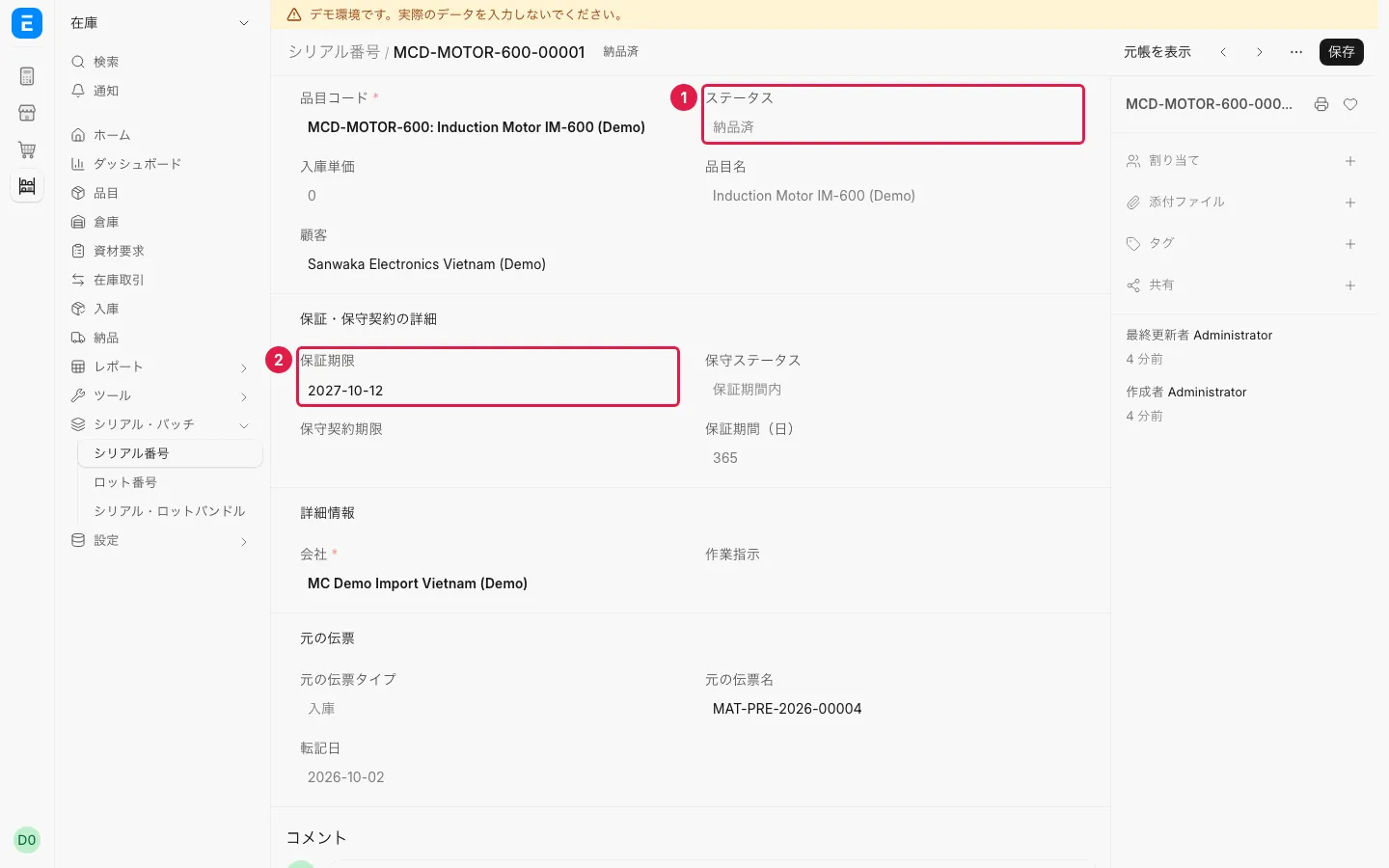
- Open the first delivery, then the serial number.
- Screen
- シリアル番号
- Result
- ステータス 納品済 ① and 保証期限 ②.
S08 — Actual cost and gross profit
You do not know the true cost and margin after duty and freight
In the demo, filter by DEMO-S03, DEMO-S07 to open the same data.
Step 1
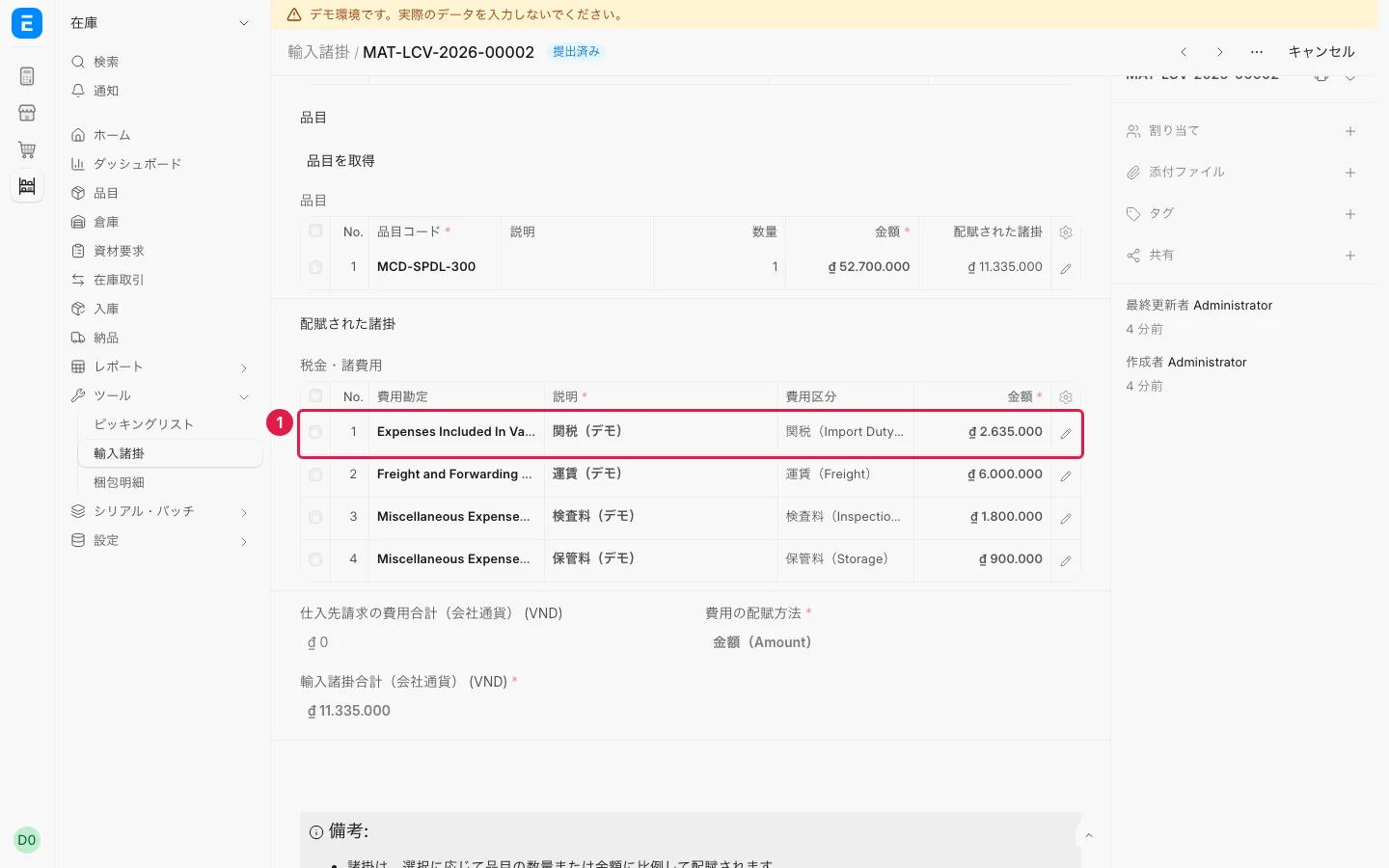
- Action
- Open the 輸入諸掛 of S03.
- Screen
- 輸入諸掛
- Result
- The 関税 line ①, from the item's duty rate.
Step 2
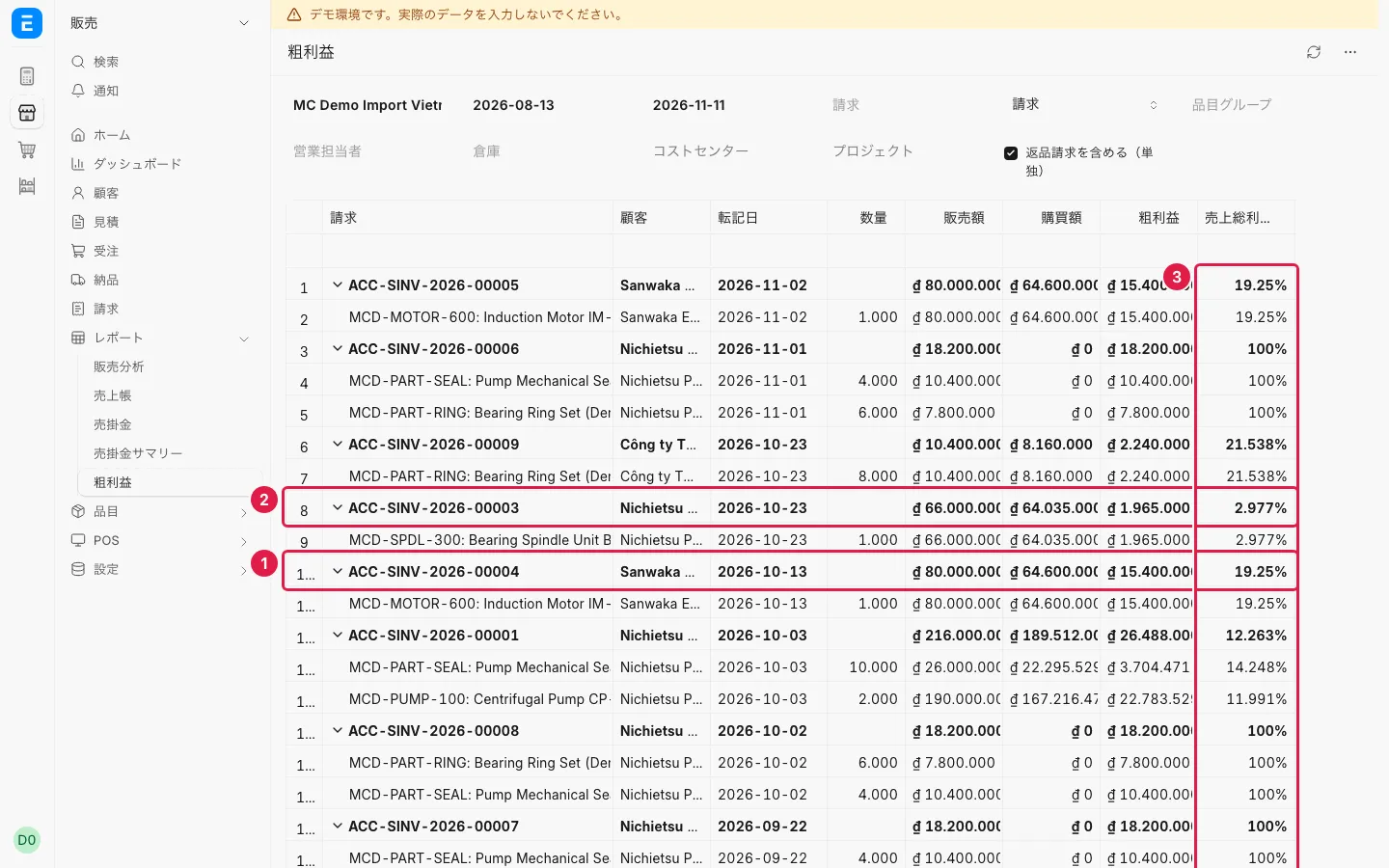
- Action
- 検索 → report 粗利益 for the Vietnam company, last 90 days, grouped by 請求. It has many columns: scroll sideways or hide extra columns.
- Screen
- 粗利益
- Result
- The S07 row ① (0% duty) and the S03 row ② (5% duty) show different 売上総利益率(%) ③.
S09 — Customer receivables
Partly paid and overdue receivables are hard to track
In the demo, filter by DEMO-S09 to open the same data.
Step 1
- Action
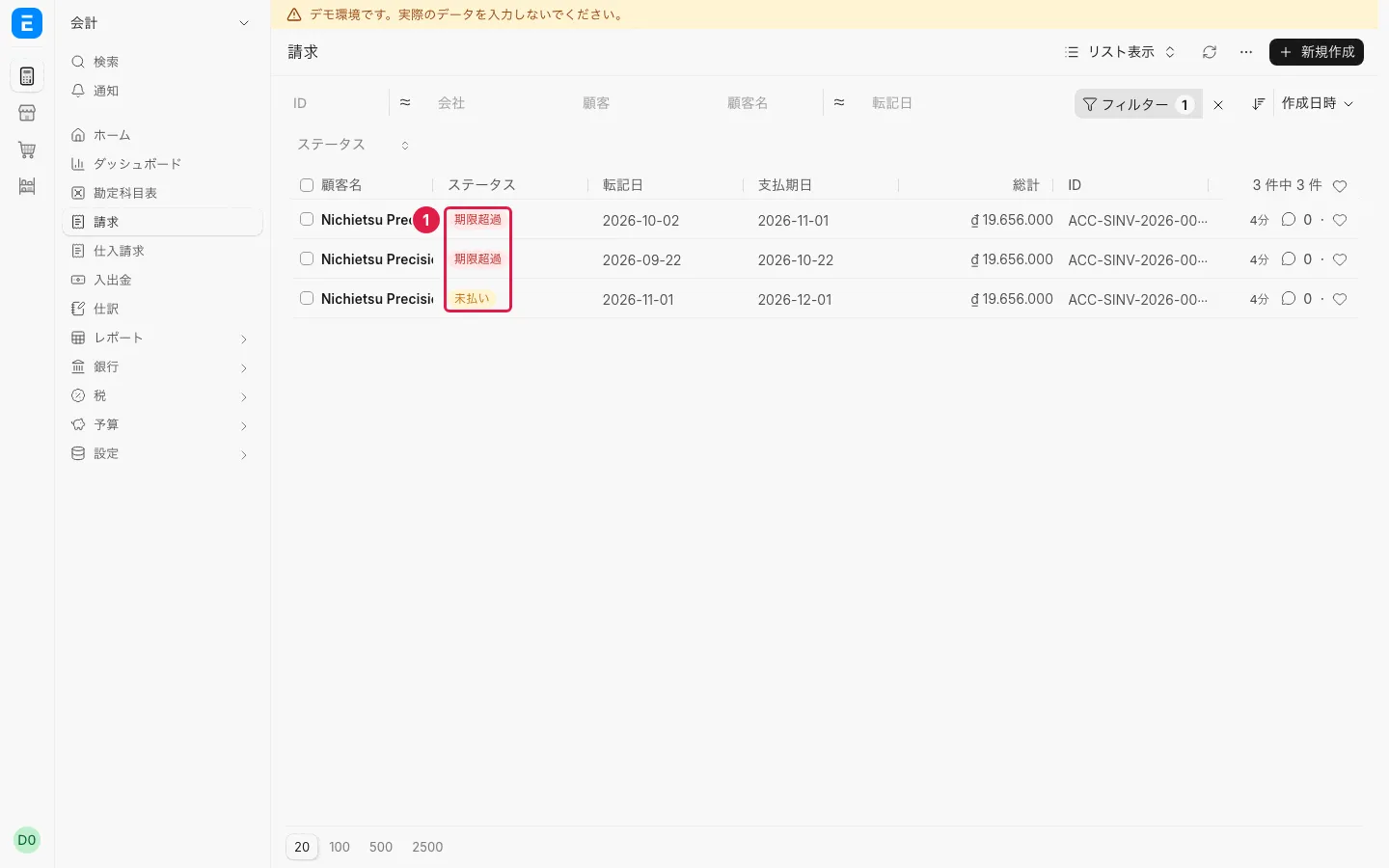
- Filter the 請求 list by 顧客の発注番号 = DEMO-S09….
- Screen
- 請求 一覧
- Result
- Status ①: one 未払い (not yet due) and two 期限超過. An invoice that is 40% paid, with the rest overdue, still shows 期限超過.
Step 2
- Action
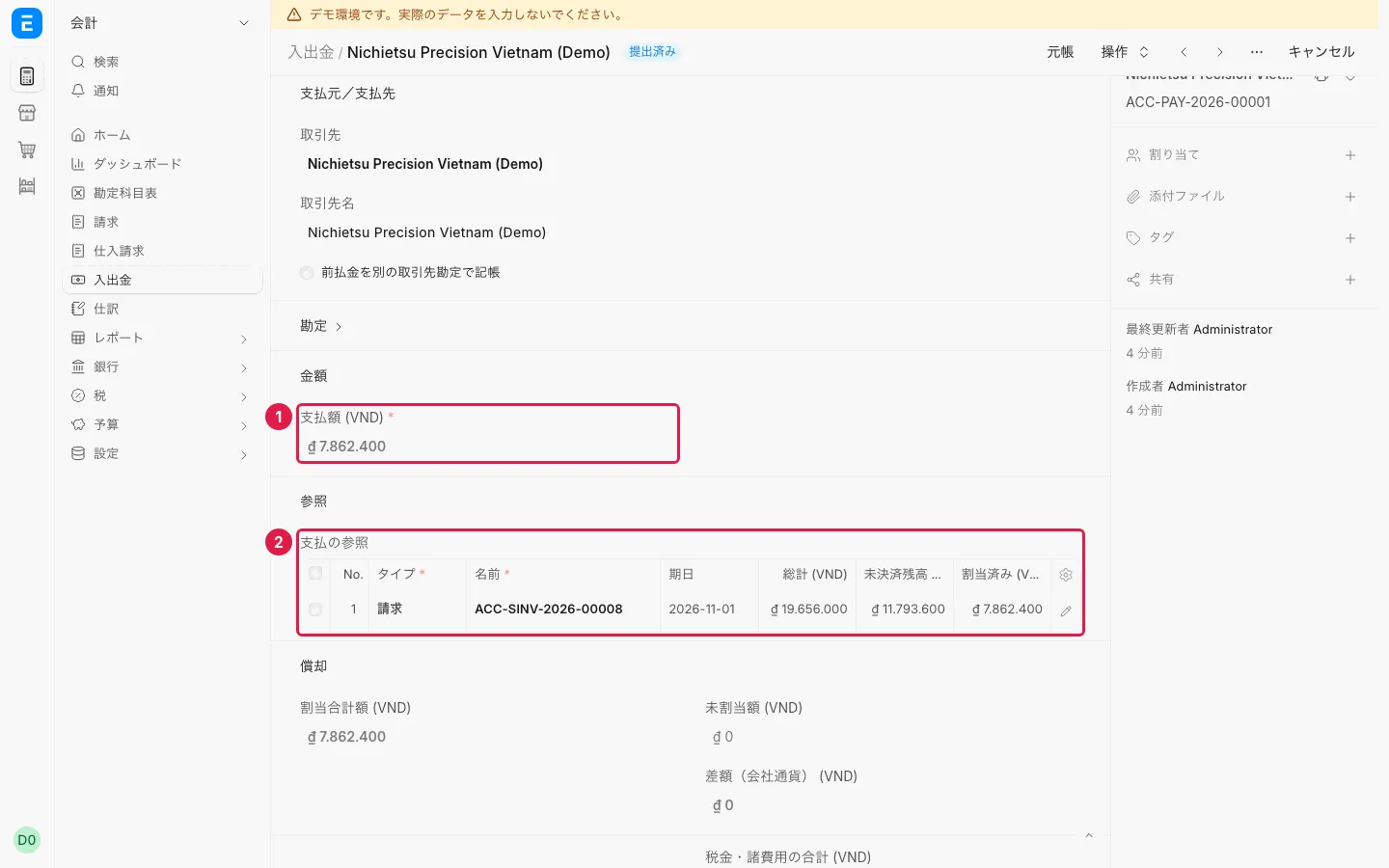
- Open invoice DEMO-S09C → 関連 → 入出金.
- Screen
- 入出金
- Result
- 支払額 ① is 40% of the invoice; in 支払の参照 ②, the other 60% is 未決済残高.
Step 3
- Action
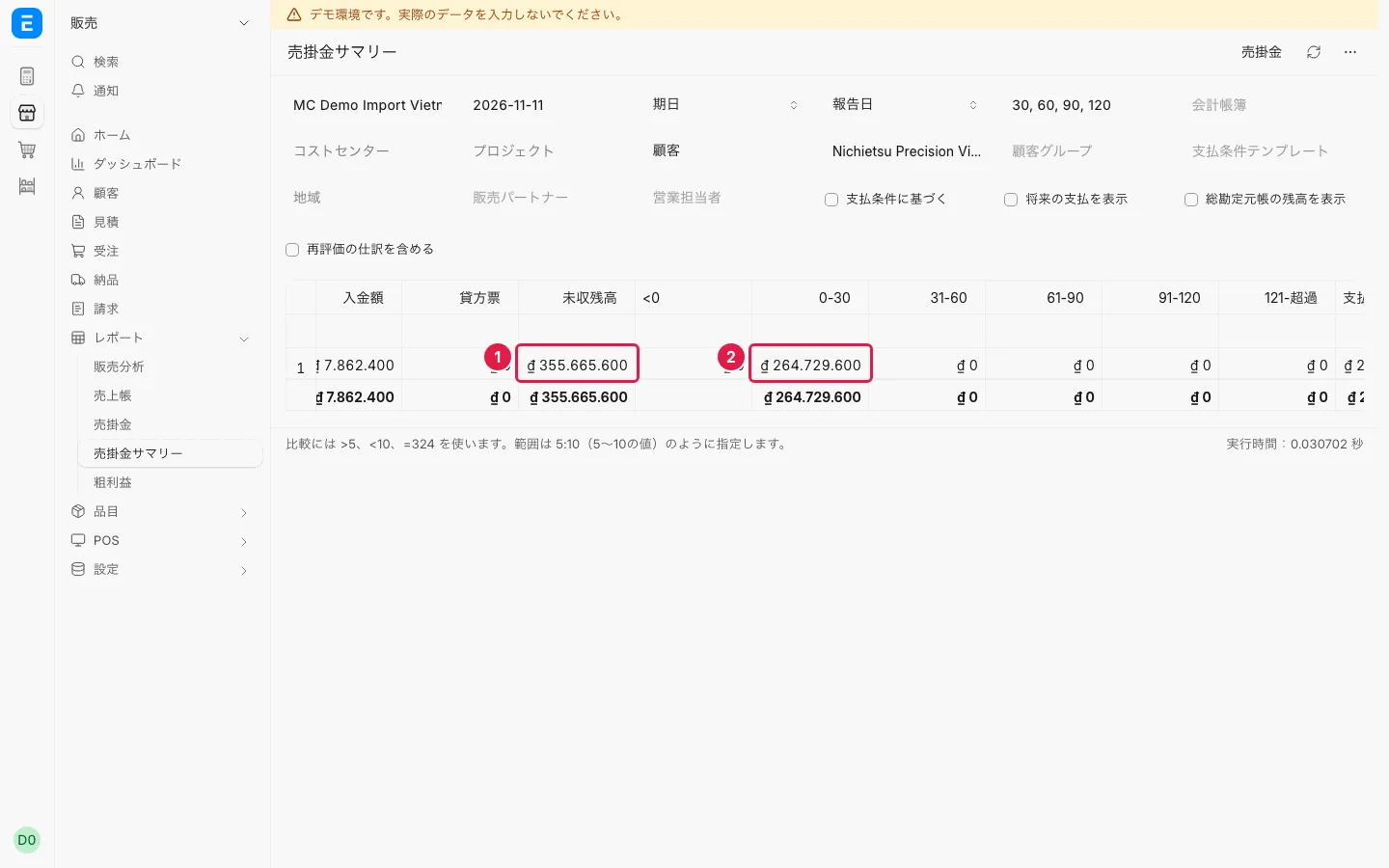
- 検索 → report 売掛金サマリー, filtered to customer Nichietsu.
- Screen
- 売掛金サマリー
- Result
- One row per customer: 未収残高 ①, split by age ②.
S10 — Paying in JPY and exchange gains or losses
Purchases in yen or dollars make exchange gains and losses tedious
In the demo, filter by DEMO-S10 to open the same data.
Step 1
- Action
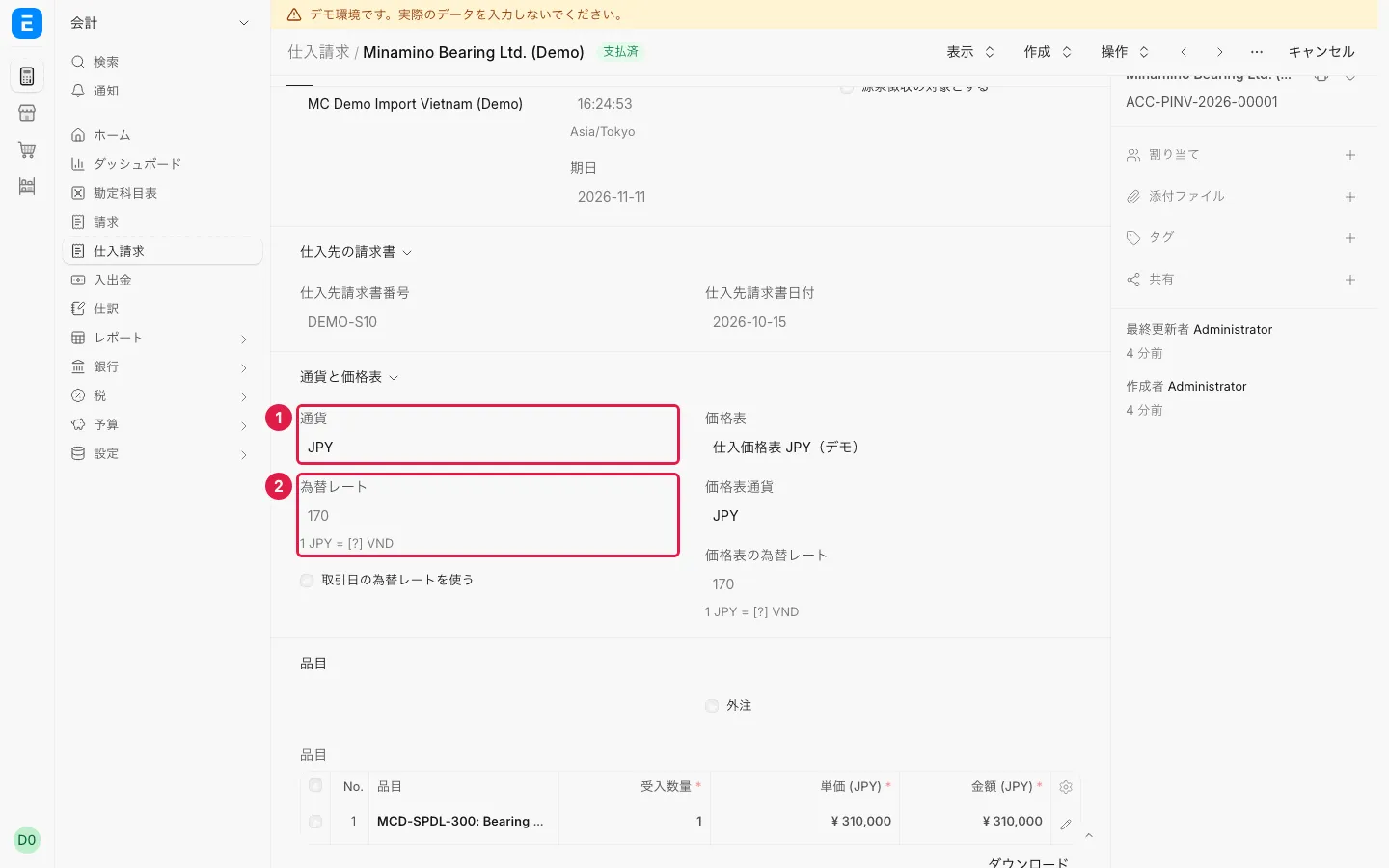
- Open the 仕入請求 whose 仕入先請求書番号 is DEMO-S10.
- Screen
- 仕入請求
- Result
- 通貨 JPY ① and 為替レート 170 ②.
Step 2
- Action
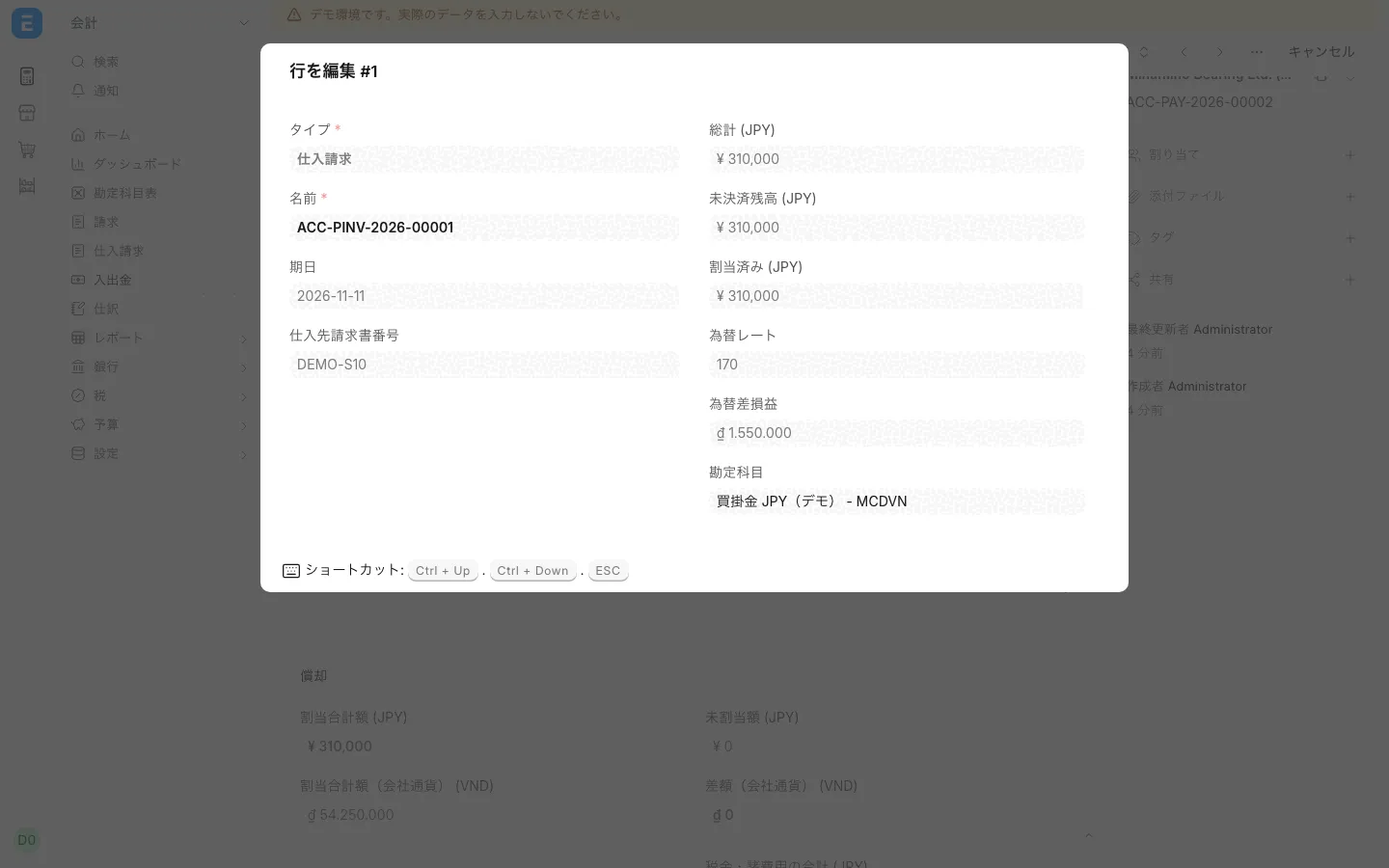
- 関連 → 入出金, then the pencil on the reference row (行を編集).
- Screen
- 入出金
- Result
- The payment rate is 175; the reference row shows 為替差損益 ₫1.550.000, and a separate 振替仕訳 for the difference is also created.
S11 — Supplier billing in USD
Purchases in yen or dollars make exchange gains and losses tedious
In the demo, filter by DEMO-S11 to open the same data.
Step 1
- Action
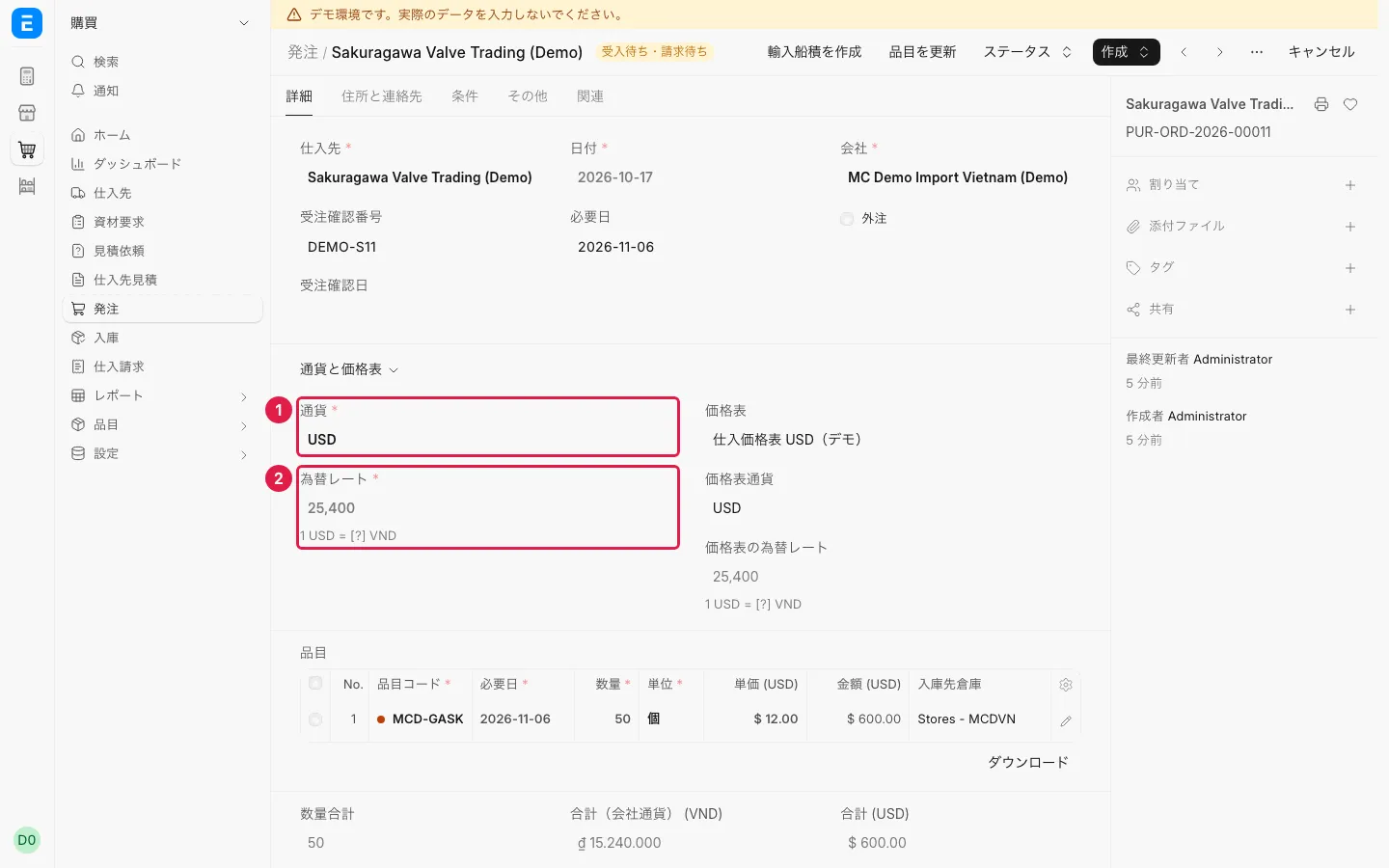
- Open purchase order DEMO-S11.
- Screen
- 発注
- Result
- 通貨 USD ① and 為替レート ②.
Step 2
- Action
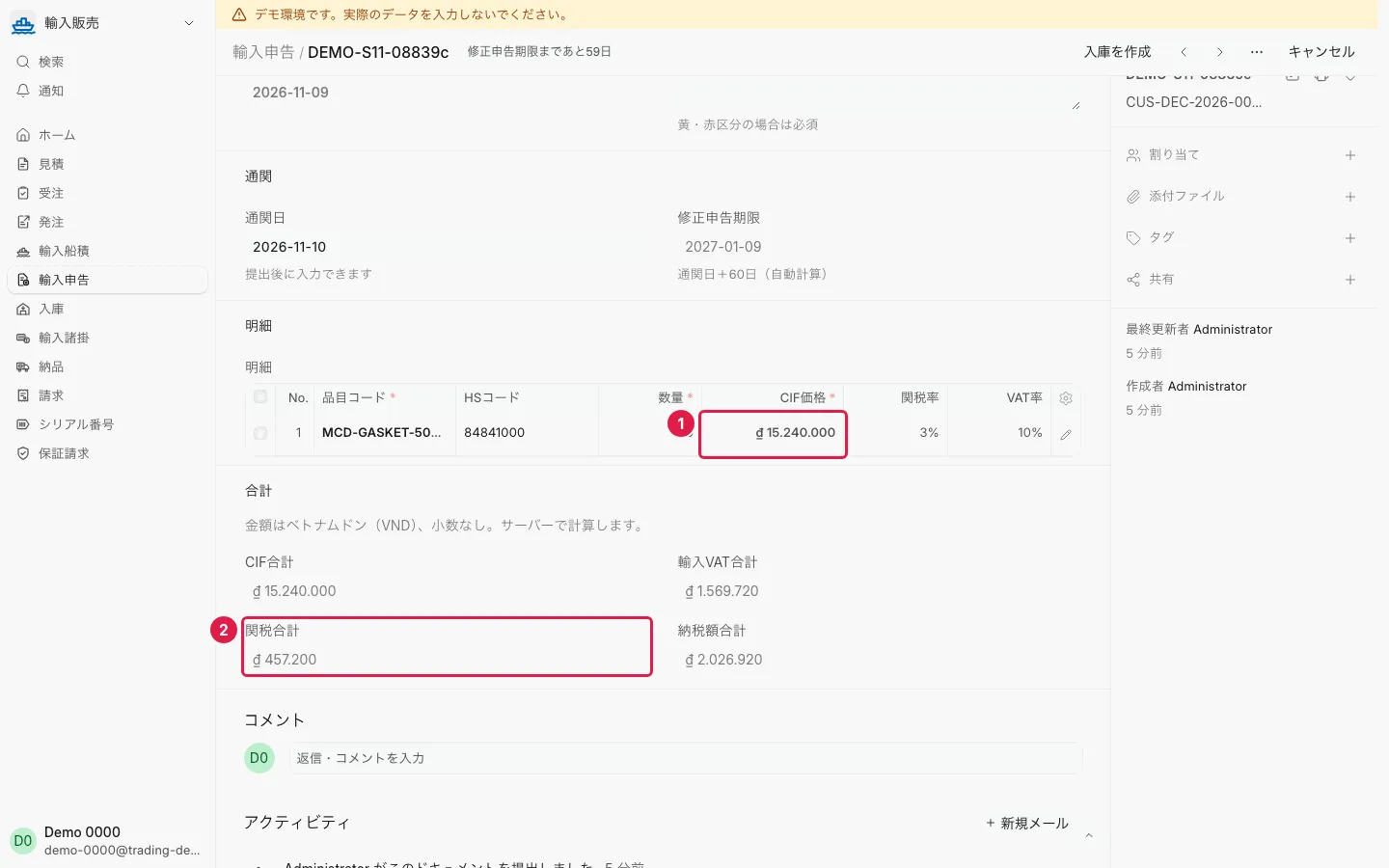
- 関連 → shipment → 輸入申告.
- Screen
- 輸入申告
- Result
- CIF価格 in VND ①; import duty and import VAT are calculated automatically ②.
S12 — Warranty in or out of period
When a claim comes in, can you tell at once whether the warranty has expired?
In the demo, filter by DEMO-S12 to open the same data.
Step 1
- Action
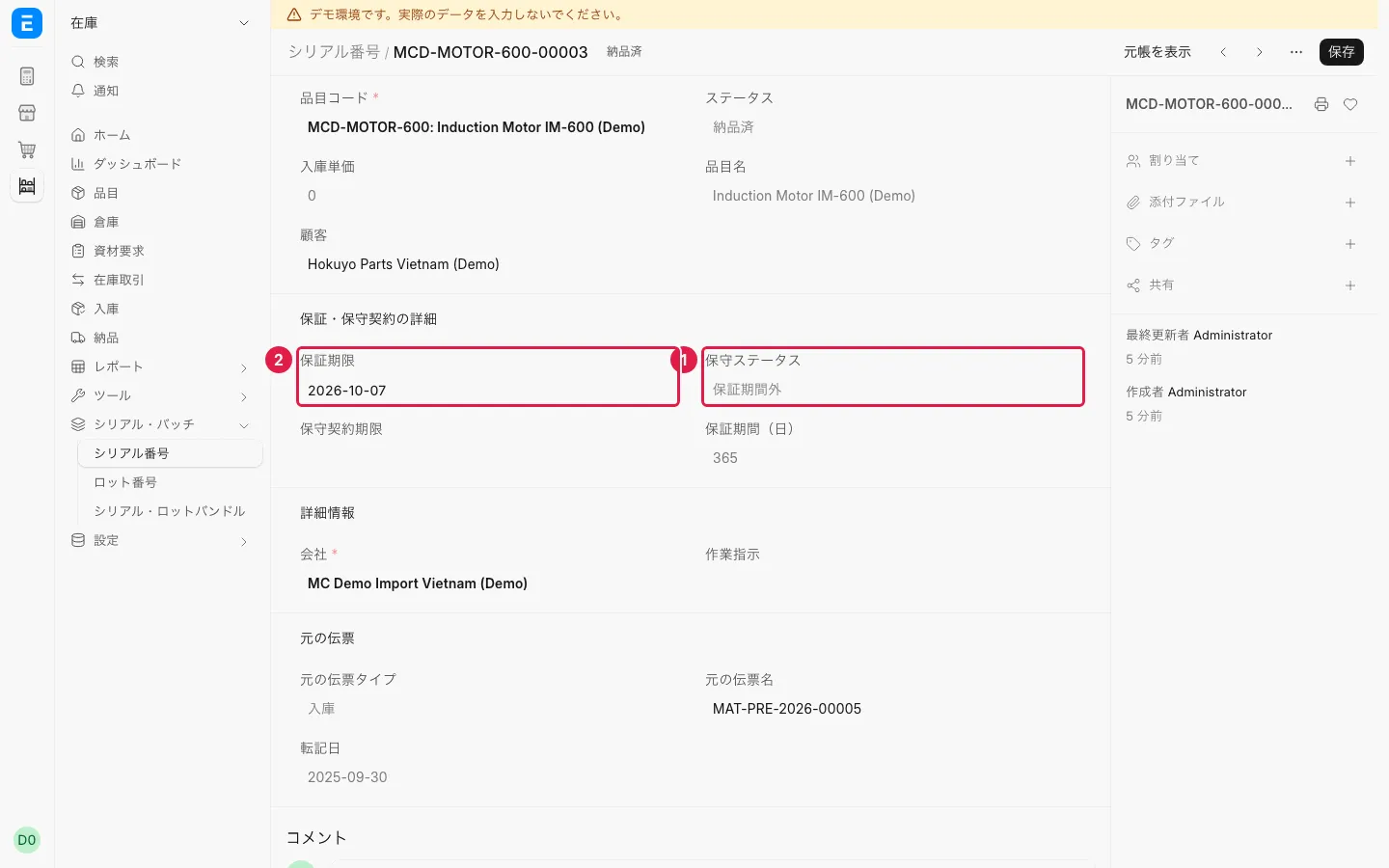
- From delivery DEMO-S12, open the MCD-MOTOR-600 serial number.
- Screen
- シリアル番号
- Result
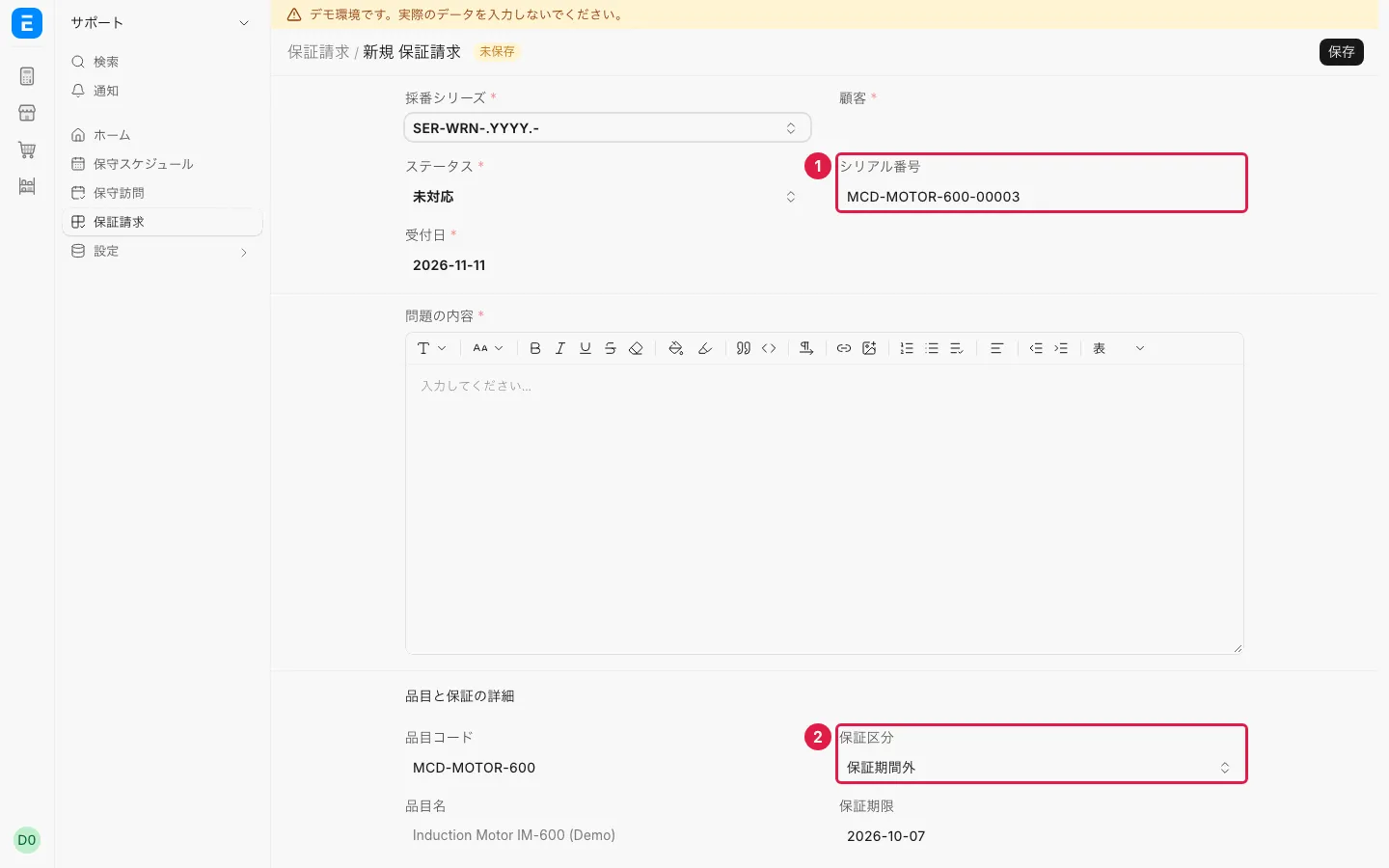
- 保守ステータス = 保証期間外 ①; the 保証期限 ② has passed.
Step 2
- Action
- 保証請求 → 新規, and pick this serial number ①.
- Screen
- 保証請求
- Result
- 保証区分 becomes 保証期間外 ②.
S13 — Returns and credit notes
When defective goods come back, can you link them to the original delivery and the credit?
In the demo, filter by DEMO-S13 to open the same data.
Step 1
- Action
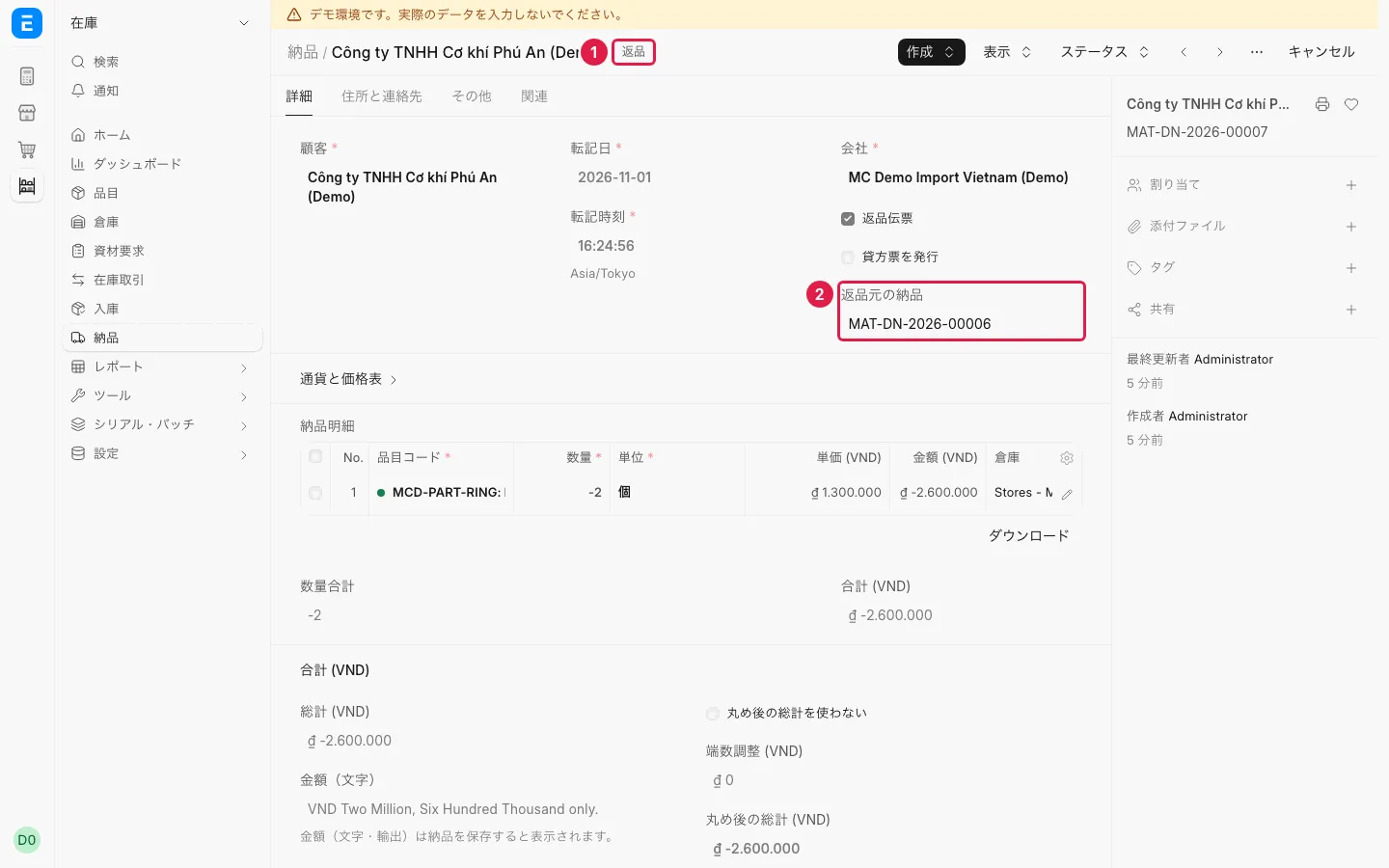
- Open delivery DEMO-S13 → tab 関連 → the return note.
- Screen
- 納品(返品)
- Result
- A 返品 label ① (2 units); 返品元の納品 ② points to the original delivery.
Step 2
- Action
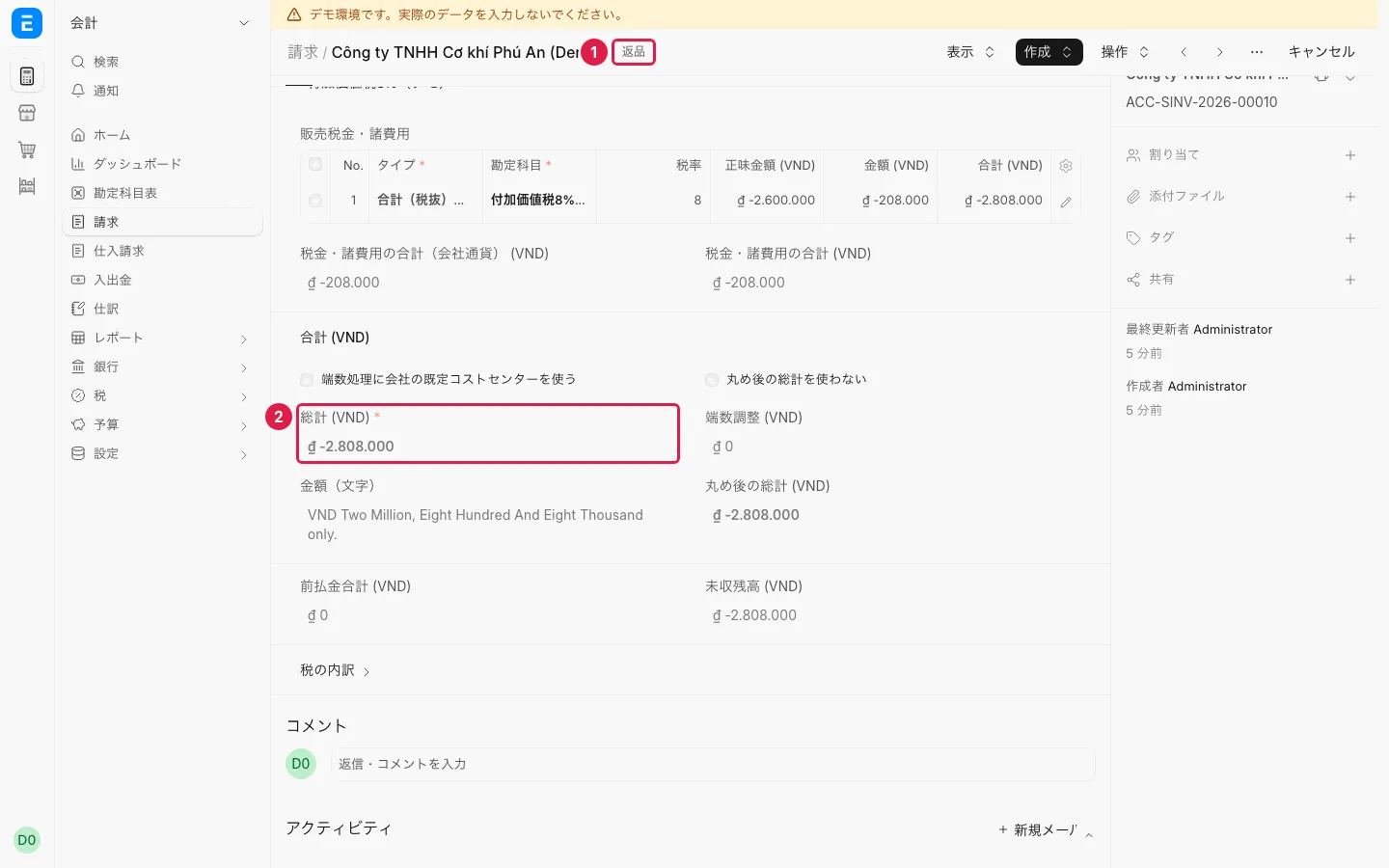
- Open 請求 DEMO-S13-CN.
- Screen
- 請求
- Result
- A 返品 label ① (credit note) and a negative total ②.
S14 — Japanese entity: sales and documents
Can the Japanese entity issue Japanese-style documents in yen to Japanese customers?
Step 1
- Action
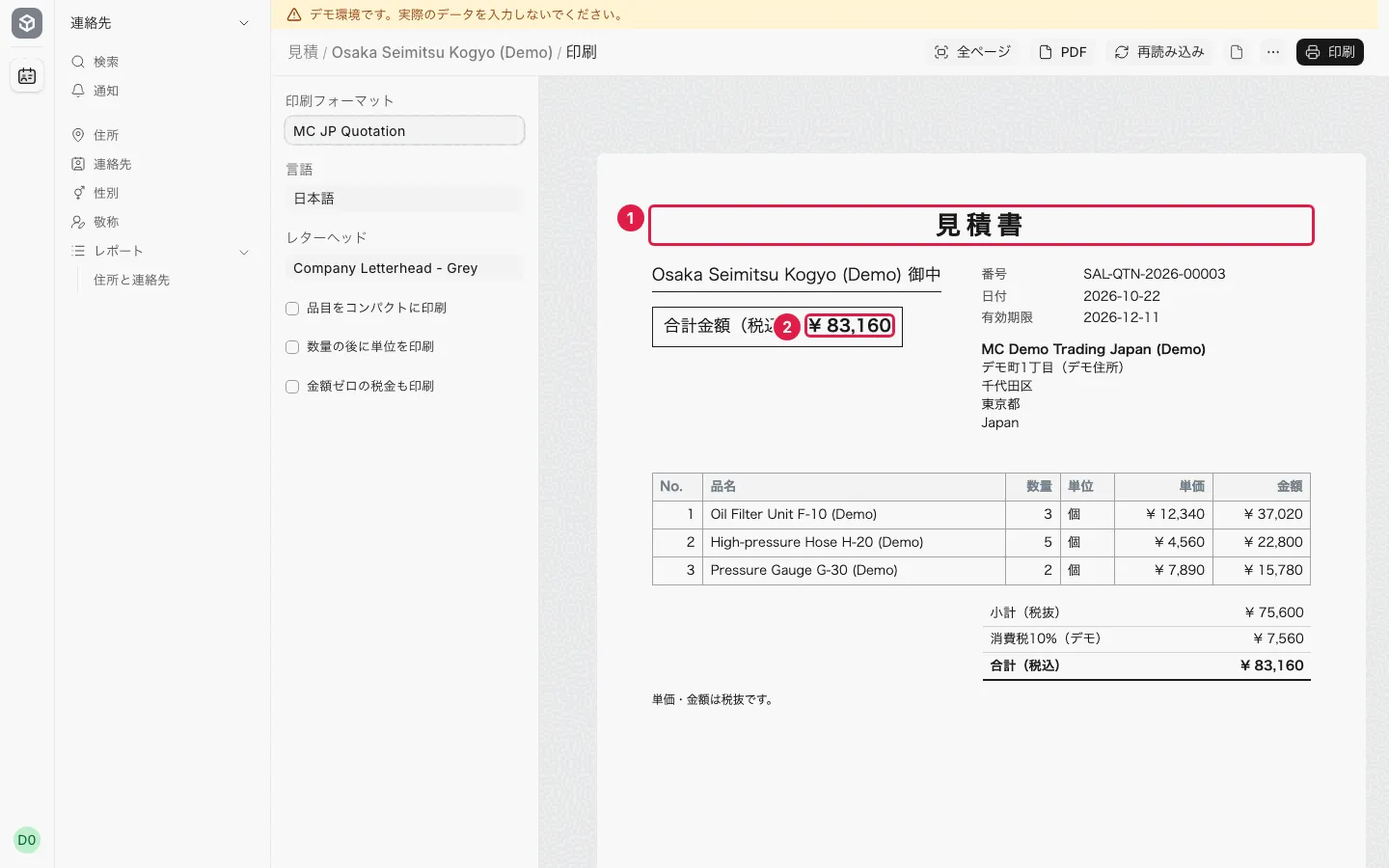
- In the 見積 list, filter to the Japanese company and Osaka Seimitsu; 印刷 → MC JP Quotation.
- Screen
- 見積
- Result
- A 見積書 ① in yen ②.
Step 2
- Action
- 関連 → 受注 → 納品 → 請求, then print with MC JP Qualified Invoice.
- Screen
- 請求
- Result
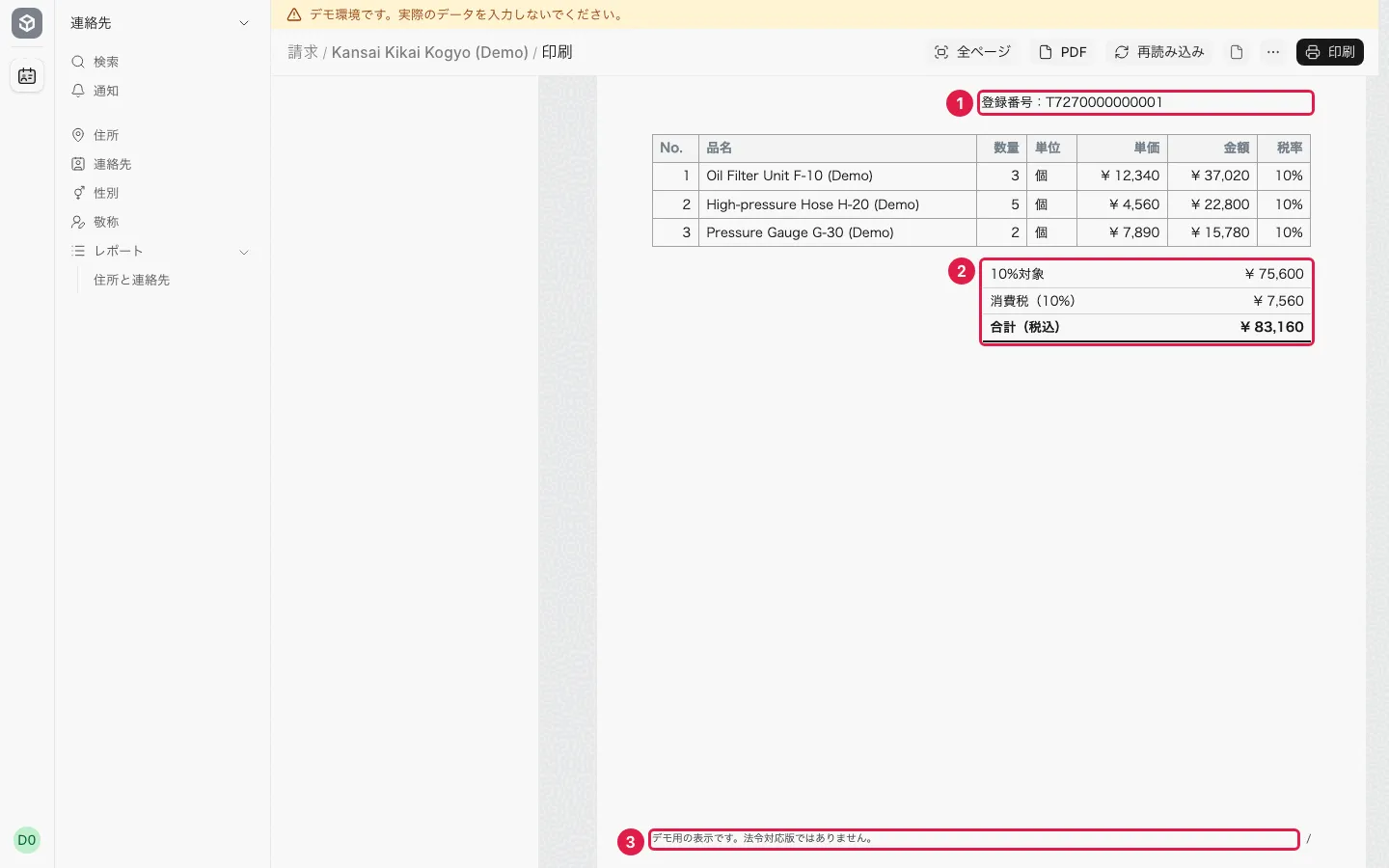
- An invoice print sample with a 登録番号 ① and a breakdown by tax rate ②. As line ③ at the bottom says, it is a demo layout, not a legally compliant version.
S15 — HS code approval for a new item
Could a new item be declared before its HS code has been checked?
In the demo, filter by DEMO-S15 to open the same data.
Step 1
- Action
- On shipment DEMO-S15 press 輸入申告を作成, fill it in, 保存, then 提出.
- Screen
- 輸入申告
- Result
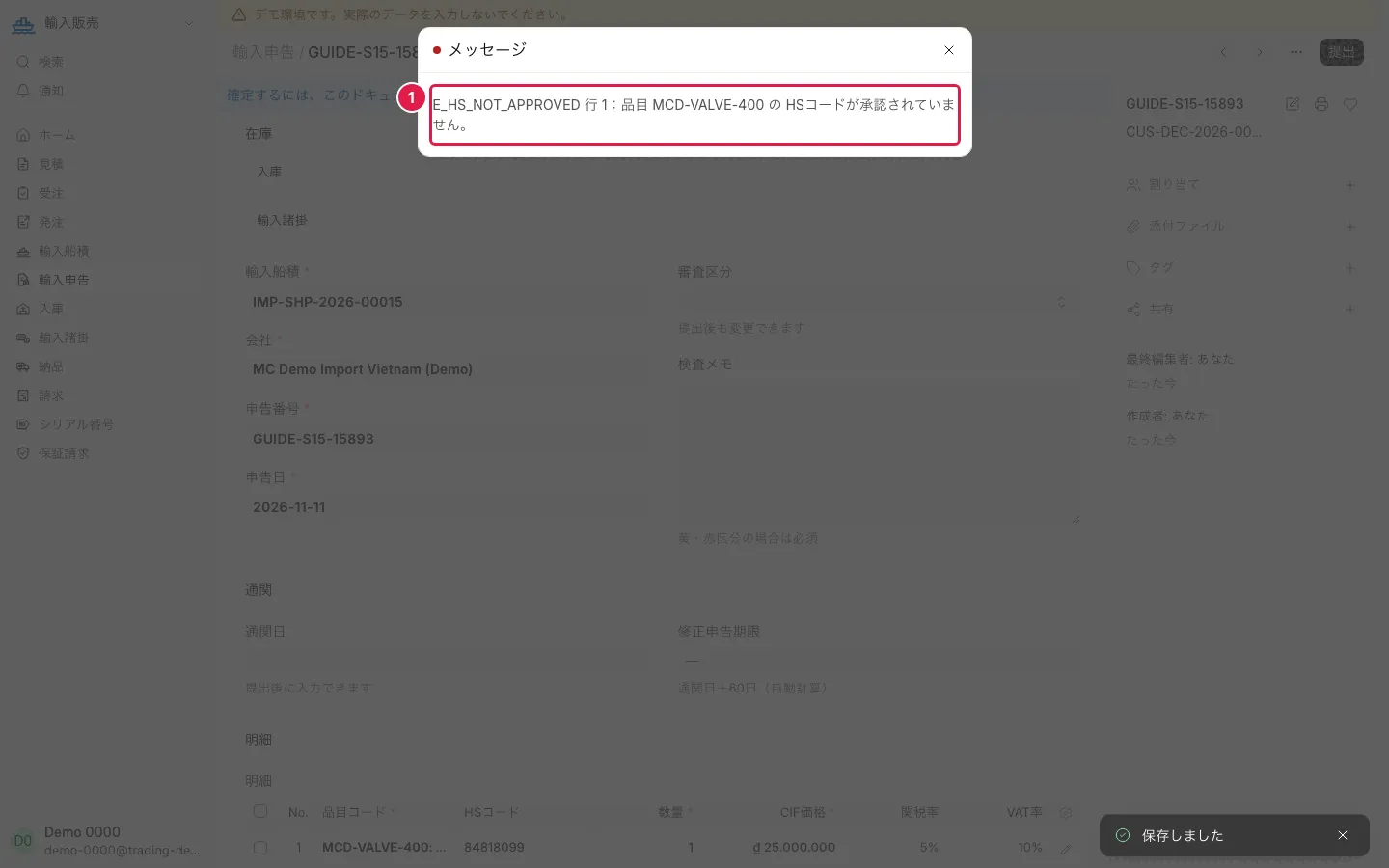
- Message E_HS_NOT_APPROVED ①: the declaration cannot be submitted because an item's HS code is not approved.
Step 2
- Action
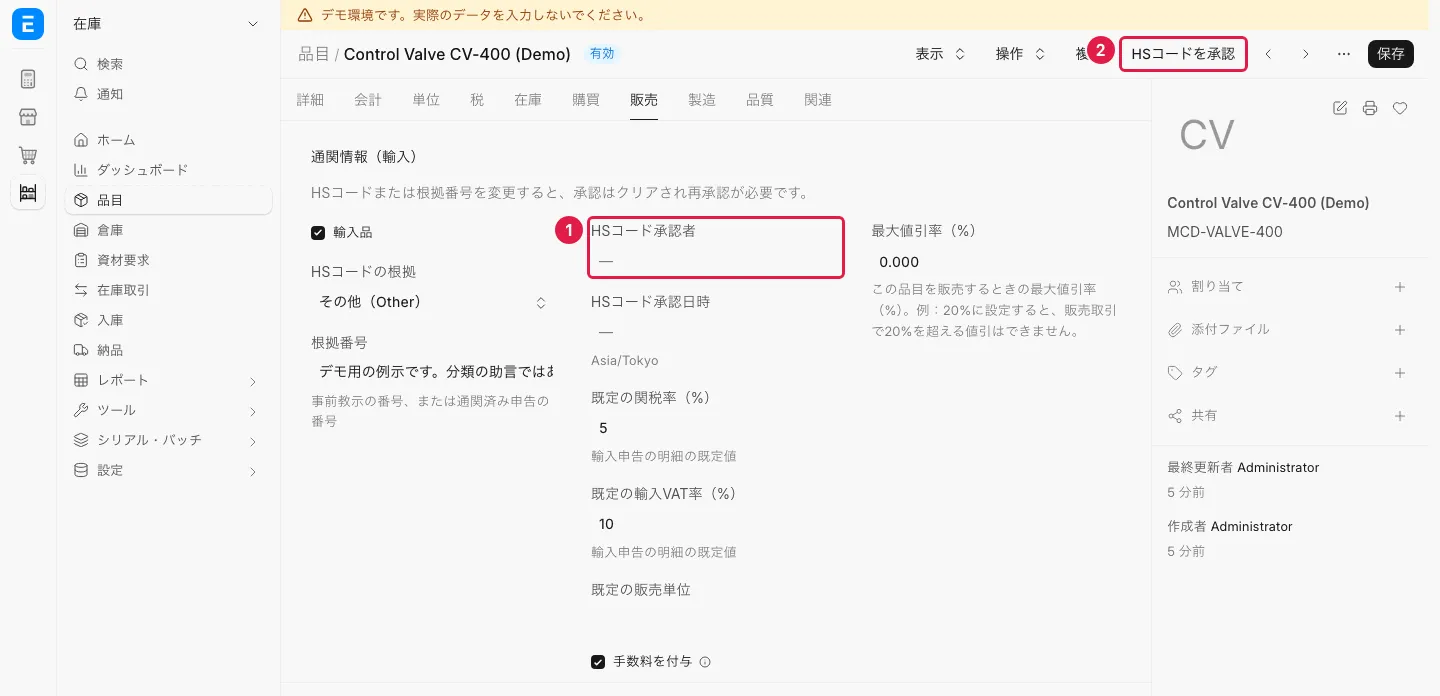
- Open item MCD-VALVE-400, section 通関情報(輸入).
- Screen
- 品目
- Result
- HSコード承認者 is empty ①; there is an HSコードを承認 button ②.
Step 3
- Action
- Press HSコードを承認, go back to the declaration and press 提出.
- Screen
- 輸入申告
- Result
- HSコード承認者 and HSコード承認日時 are filled in, and the declaration can be submitted.
S16 — Japanese and Vietnamese staff view the same document
Japanese and Vietnamese staff struggle to share the same information
In the demo, filter by DEMO-S01 to open the same data.
Step 1
- Action
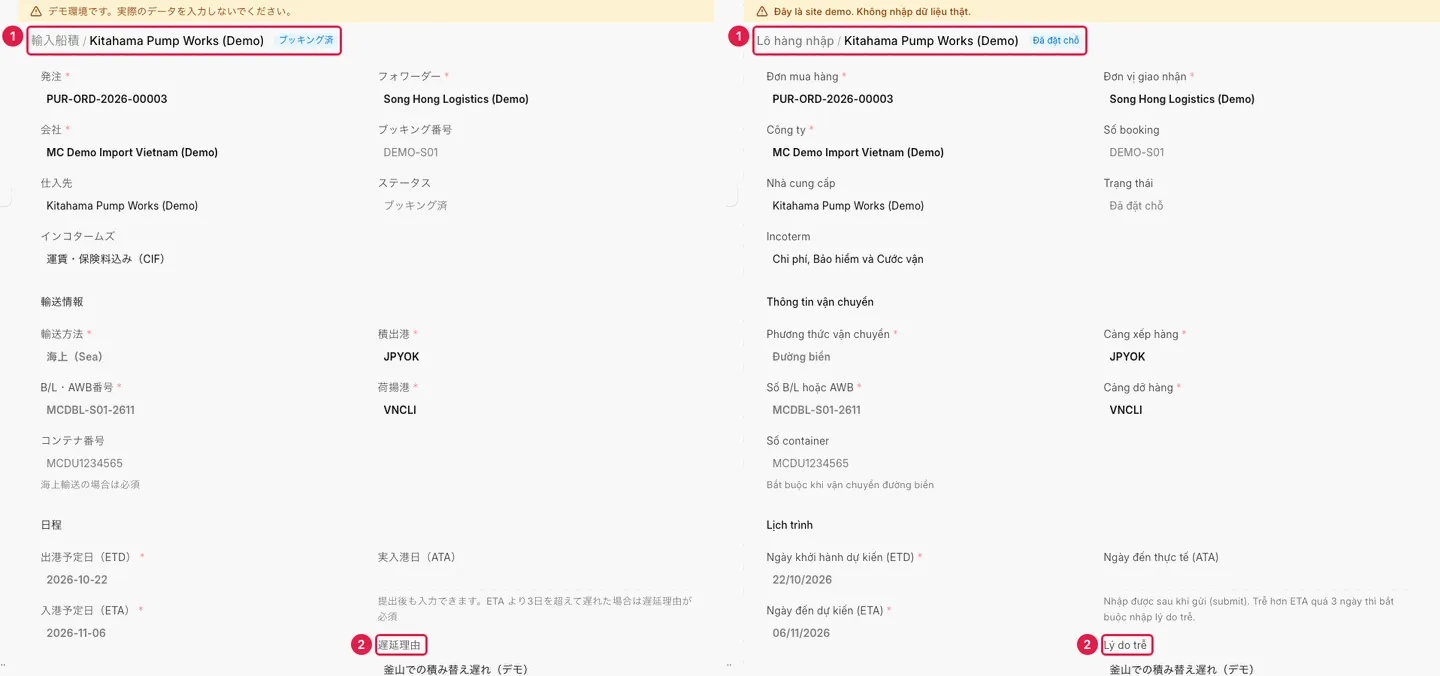
- Browser 1: a Japanese account opens DEMO-S01; browser 2 (private window): a Vietnamese account opens the same shipment.
- Screen
- 輸入船積
- Result
- The same document ①, labelled in Japanese and in Vietnamese ②.
Step 2
- Action
- In browser 2 type in the comment box and press コメント; reload browser 1.
- Screen
- 輸入船積
- Result
- The comment shows in both.